Not all 404 pages are the same. Review and update broken internal links, apply 301 redirects on valuable URLs, and let orphaned, valueless links return a 404 page altogether. Then, focus on scaling and preventing future occurrences.
Inside the world of technical search engine optimization (SEO), the 404 “Page Not Found” message pops up everywhere. Many view it as a minor issue or even as a normal part of running a site. However, letting 404s linger unchecked can chip away at a site’s performance day after day. This guide goes beyond the quick fixes and lays out a tactical plan for spotting, ranking, and handling 404 errors. The main goal is clear: recover lost link equity and protect the authority you’ve already earned.
The True Cost of 404s
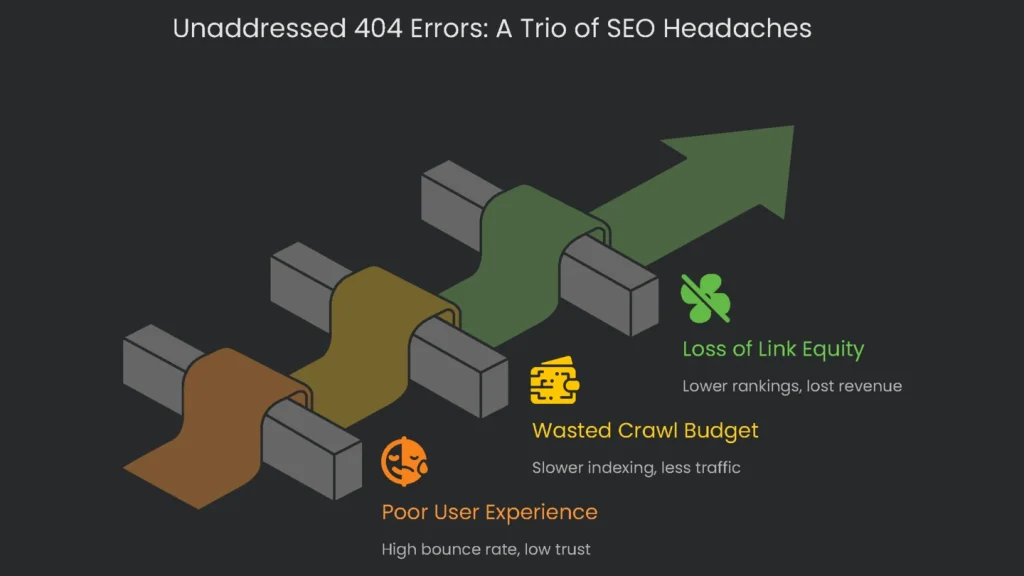
Search engines like Google have openly communicated that the appearance of 404 errors is a normal phase of web maintenance and will not, by itself, cause site-wide penalties. This statement is true on the surface; however, it can create a dangerous impression. As a result, site owners may delay fixing 404 pages and miss the bigger picture: the serious knock-on effects that come from letting these errors pile up. In short, the hidden price of unaddressed 404 errors shows up as a trio of linked SEO headaches.
1. Poor User Experience and Damaged Trust
A 404 hits the user hardest. They click a link and expect useful content, only to be stopped cold. That sudden break is jarring.
Consequently, most people leave the site right away. That behavior drives up the bounce rate and drops the average session time. Search engines watch these metrics as signs of site quality.
Therefore, if high bounce rates become a trend, algorithms may conclude the site isn’t meeting user needs, and the site’s rankings could quietly slip. Moreover, a site littered with dead links starts to feel abandoned and untrustworthy. Visitors notice, and brand credibility takes a hit, making people less willing to come back or complete a purchase.
2. Wasted Crawl Budget and Indexing Inefficiency
Search engines work with a fixed budget for crawling your site that they can’t just stretch whenever they feel like it. Picture it like a tour guide who only has five minutes for a visit. If that guide keeps getting led to a broken exhibit, time runs out. The crawler then moves on.
Consequently, Googlebot and its peers sink parts of that budget into pages that are already dead-404 errors. In the long run, having empty time slots for error pages may make Google think the building’s a mess and decide to visit less often. Slower visits starve the site of fresh indexing, which starves it of fresh traffic.
Therefore, keeping 404s alive for too long not only wastes that unit of budget, it sends out a vibe that the site is irregular. The fix is simple: set proper 3xx redirects for moved pages and delete the pages that are dead for good.
3. The Critical Loss of Link Equity and Ranking Authority
The biggest and deadliest SEO hit you will take when you ignore 404 pages is the silent loss of link value. Those outside websites that link to you, the ones dripping with authority, are your greatest allies when it comes to climbing the rankings. However, if they point to a 404, the authority that page used to carry is trapped, and the link becomes a dead twig.
As a result, no juice returns to the homepage, the topic pages that linked from it, or the page that should have benefited. That single, unhandled 404 means traffic and trust both take a hit. Therefore, prioritize a redirect that sends users-and the juice in the link-toward the best new target. The equivalent of a live redirect for visitors has to be a proper 301 for the search engine.
If you ignore the redirect, it is not just the page that you lose. You lose organic slots, session time, and eventually revenue. These links serve like invisible votes that pass a special kind of authority-often called “link equity” or “link juice”-to the pages they point to.
When a strong page with many of these votes disappears or moves and instead shows a 404 error, that authority gets cut off. The original backlinks from other websites remain, but they’re now just empty paths. Consequently, the site’s link profile shrinks, leading to clearer consequences: lower search rankings, reduced organic visibility, and lost referral traffic. Fixing the issue is more than cosmetic; it’s company-wide recovery of a valuable brand asset.
A Multi-Faceted Audit
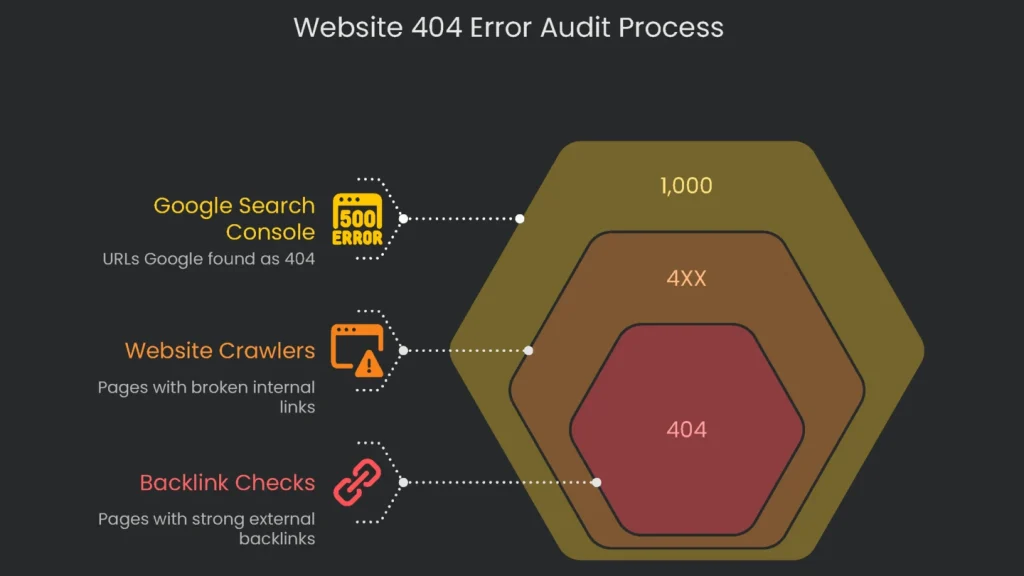
Solid 404 error management starts with an end-to-end audit. Counting on just one scanner or code check won’t cut it; each tool shows a different slice of the site’s pulse. Therefore, a bulletproof audit stacks three layers of checks: first, a batch of requests from Google’s own bots; second, a crawl of the internal site skeleton; and third, sifting through details of the backlinks pointing in from the wider web.
When these three crinkles are unfolded side by side, blind spots disappear and the 404 audit becomes a sharper guide for recovery.
- This layered review makes sure no major mistakes get overlooked and delivers the data needed to rank fixes properly.
Method 1: Use Google Search Console to See What a Crawler Sees
Google Search Console (GSC) is the must-have starting point for checking 404 mistakes. It shows exactly how Googlebot looks at a website, listing the specific 404 pages the crawler has run into. This information is crucial because it shows the pages that directly affect how Google indexes and views the site.
Follow This Simple Guide for the “Pages” Report
- Open the Report: Sign in to the Google Search Console property you manage. From the left-side menu, go to Index and click on Pages. This report, previously called the “Coverage” report, shows the indexing status for every URL that Google knows about.
- Isolate 404 Errors: Scroll to the part of the report that shows “Why pages aren’t indexed” and locate the row that says “Not found (404).” Click that row.
- Review the URL List: Google Search Console will present a list of sample URLs that returned a 404 error during the last crawl. Remember, this list shows the most urgent pages but is capped at 1,000 lines and may not list every single 404 found by Google.
Advanced Analysis: Identifying Referrers
Just knowing a page is missing is not enough. To truly fix the issue, you need to learn who is still linking to that page.
- Select a URL: From the list of 404 pages, click the one you want to dig into.
- Inspect the URL: A sidebar will slide in. Alternatively, you can click the “Inspect URL” button at the top of the GSC interface.
- Find the Referring Page: The URL inspection tool will show detailed data about how Google sees the chosen page, including the referrer that may still point to the dead link.
Method 2: Using Website Crawlers to Find and Fix Internal Broken Links
Google Search Console (GSC) only shows what the search engine has already discovered. A good website crawler, on the other hand, builds a complete, proactive map of the entire internal linking structure. Programs like Screaming Frog SEO Spider and Ahrefs’ Site Audit quickly crawl every link on the site.
As a result, they spot broken internal links that create frustrating user experience and munch away at page authority-often before Google sees the issue. Therefore, you can fix problems proactively rather than reactively.
Walkthrough: Crawl a Site with Screaming Frog SEO Spider
- Start the Crawl: Open Screaming Frog. Type the site’s homepage URL in the search bar at the top and click Start.
- Filter for Client Errors: After the crawl finishes (or even while it runs), click on the Response Codes tab at the top of the window.
Quick Tip: Use Ahrefs’ Built-in Check
- Kick Off the Scan: Head to the Ahrefs dashboard, make a project for the website you’re checking, and fire off a Site Audit.
- Go to Reports: When the crawl finishes, head to the All issues report. Find the line that says “Page has links to broken page,” or skip to the Internal pages report directly.
- Check the Broken Links: In the Internal pages report, filter to show pages with a 4XX response. You’ll see each broken link along with a “No. of inlinks” column. Click the number to see all the internal pages that link to that broken page. This makes it easy to spot and fix the referring links.
Method 3: Find High-Value Fixes with Backlink Checks
This step offers the biggest potential revenue boost of the audit. Instead of just looking at your site, it zeroes in on recovery of lost authority. Using a robust backlink analysis tool-like Ahrefs’ Site Explorer-you can discover broken pages with strong, authority-driving external links. These 404s are losing link juice, and fixing them should be your top priority to retain that valuable equity.
A Detailed Guide to Ahrefs’ Site Explorer
- Enter Your Domain: Head to the Site Explorer home screen and type the domain you want to study into the search box, then click the big green button.
- Access the “Best by Links” Report: On the sidebar to the left, find the Pages section and click on Best by links. This handy report shows all pages on the site-live and dead-ranked by how many referring domains they’ve got, so you’ll go straight to the power players.
- Apply the 404 Filter: Once the report loads, look for the filters row near the top. Open the HTTP code filter and pick 404 not found. This trims down the list to pages that don’t exist anymore.
- Analyze the Priority List: Now you’ll see the juicy list of 404 pages, ordered by the strongest backlink profile. The rows at the top are the worst leaks of link equity, so those are the ones you should fix today.
- Investigate Backlinks: To get the details on the links pointing to any 404, click the number in the Referring domains or Backlinks columns for that URL. This opens another report that shows exactly where the links are coming from and how valuable they really are.
This opens a full report that lists every external site linking to that broken page, proving exactly where authority is waiting to be reclaimed.
By repeating these three audit methods, a site manager creates a full, ordered list of 404 pages. Consequently, the team can shift from fixing problems one by one to planning fixes based on real data.
Make a Priority Action Plan
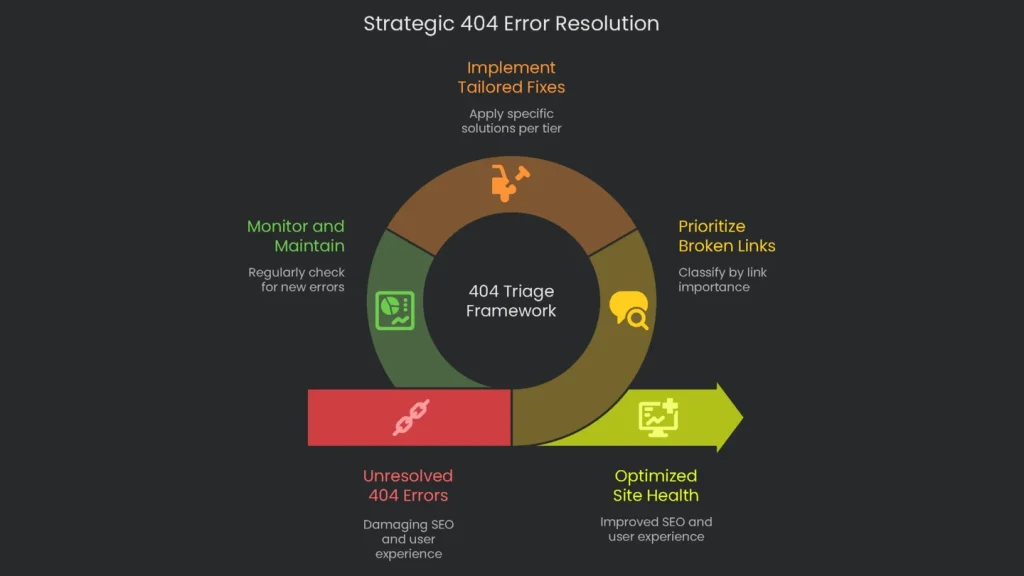
After gathering every 404 error, the focus turns to fixing them. Many use a one-size-fits-all “redirect them all” rule, but that wastes time and may hurt rankings instead. Therefore, the pro method is to triage every broken link-look at its value and how it fits into the site, then pick the fix that makes the most sense.
Following this plan makes sure that the team spends its time and budget on the changes that help SEO the most.
The 404 Triage Framework: A Simple Model for Quick Fix Decisions
The 404 Triage Framework classifies broken links into a few clear priority levels. When you find a 404 page in your audit, ask these three questions to figure out what to do next:
- Does this page still have important external backlinks pointing to it?
- If it doesn’t, is it still linked from other parts of my own website?
- If still unanswered, was this page purposefully removed and is therefore out of date?
Depending on your answers, you’ll sort the page into one of three tiers, each leading to a clear, tailored fix.
Table 1: 404 Error Triage Matrix
| Problem | Urgency | Action | Goal |
| Lost URL with strong links from other sites | Critical | Set up a 301 redirect to the closest live page. | Recover and preserve the link value and keep page rank distribution strong. |
| Lost URL with internal links only | Moderate | Find the page(s) that link to it and correct the href to point to the valid URL. | Polish the user path and keep internal linking coherent. |
| Page with no links pointing to it | Low | Allow a 404 response, or better, return a 410 “Gone” status if it will never return. | Clear the site from orphan links and show search engines that it’s been planned out. |
Critical Priority: Pages Losing Link Juice
These pages are the priceless pages of your site. Each broken URL draining link value from outside sources is tearing rank authority away from your site. Act fast to redirect, or the page value is lost for good.
One Action: Strong 301 Redirect
A 301 redirect is the only acceptable choice for managing strong, external page value. This solution redirects users and search engines to the current page, passing about 90% of the authority. Always do it server-side, and never chain redirects-one hop only.
A 301 status code tells browsers and search engines that a page has permanently moved, and when done right, it passes almost all the ranking value from the old URL to the new one. This move is important for keeping search authority and avoiding ranking drops from a broken link.
When sending visitors from one URL to another, the most important rule is relevance. The new page needs to be the most closely related content on your site. For example, if a page for “blue running shoes” is dead, point it to another page that talks about blue running shoes, a running shoe category, or at the very least, a men’s footwear page.
However, sending the link to the homepage or an unrelated category-say, sandals or home gear-throws off search engines. Google can see these mismatches and may treat the redirect like a soft 404, stopping the power from flowing and wasting the link equity instead.
If there isn’t a single, one-to-one replacement page, you usually want to either make a new page that meets the original purpose or send traffic to the next-closest parent category page that covers the broad topic.
Technical Implementation
Setting up a 301 redirect can be done in a few different ways, based mostly on what server you’re using and how your site handles content:
- .htaccess File: If you’re on an Apache server, you’ll want to add redirects straight to the .htaccess file in your site’s root folder. The command looks like this: Redirect 301 /old-page.html https://www.example.com/new-page.html.
- CMS Plugins: Leading content management systems like WordPress come with powerful redirect plugins. Tools like Redirection, Yoast SEO Premium, and AIOSEO let you set up and manage redirects through a simple dashboard without touching server code.
- Platform-Native Tools: Many hosted website builders-such as Webflow, Wix, and Shopify-offer built-in redirect managers right in the back-end settings, so you can add a redirect in seconds.
Priority Level 2: Broken Internal Links
This section covers pages no one has linked to from outside the site, yet these pages are linked from at least one other place on your own site.
These problems, revealed by our site crawler, mainly hurt user experience and disrupt the natural flow of PageRank, leaving both visitors and search engine bots stuck at navigational dead ends.
The Surgical Fix
Sure, a redirect could fix this technically, but it’s not the most efficient route. Redirects add an extra step for both the browser and the server, introducing a tiny latency delay.
The surgical fix cuts the issue at the root: find the source link and update it. Use the “Inlinks” report from the site crawl (Part 1, Method 2) to spot every page listing the broken link. Next, edit the HTML of each source page. Simply update the href attribute in the anchor () tag to the correct, live URL. This approach removes the broken link completely instead of just covering it up.
Addressing Scale
When dozens, hundreds, or even thousands of internal links go dead after a site-wide URL redesign-like moving all blog posts from a /blog/ subdirectory to an /articles/ subdirectory-fixing each page manually is often unrealistic.
In this case, using a hybrid strategy works best. Set up a server-side rule that redirects legacy URLs based on a wildcard or regex pattern. At the same time, do a database search-and-replace to fix links within the content, so fresh 404s don’t keep cropping up later.
Priority Level 3: “Orphaned” 404s (No Backlinks, No Internal Links)
This group includes orphaned pages-those giving a 404 but having neither outside links nor internal references. Usually, these pages were deleted intentionally during a content review or the URLs were mistyped in user requests that sit in analytics.
The Strategic Inaction
Because these URLs don’t carry link equity and there are no user journeys being interrupted, the best course of action is to let them keep returning a 404 status. Sometimes, allowing a clean, empty page is the cleanest solution.
However, redirecting every single deleted page, especially to the homepage, wastes server resources and misleads search engines. Google knows when a page is gone and will eventually stop trying to crawl that URL. After that, the page will drop from the search index without any need for a redirect.
Advanced Site Hygiene: 404 “Not Found” vs. 410 “Gone”
If you’re serious about technical detail, there’s a better choice than just letting a page return a 404. A 410 “Gone” status code clearly tells search engines that the page is permanently gone.
- A 404 “Not Found” means the crawler sees that the page isn’t there. This can be interpreted as a temporary event, so the crawler might visit again to see if the page has come back.
- A 410 “Gone” is definitive. It tells the crawler that the page has been permanently deleted and will never return, so the URL should come out of the index as quickly as possible.
Google has mentioned the time difference might be small in practice. However, using a 410 is a clearer instruction for content that’s intentionally and permanently removed. Google can act on a 410 status more quickly than on a typical 404 error. Consequently, the problematic page often disappears from its index sooner.
If a webpage has been purposefully deleted and doesn’t have a substitute, sending a 410 is the best way to keep a clean and efficient index.
Table 2: HTTP Status Code Comparison for Deleted Content (404 vs. 410)
| Attribute | 404 Not Found | 410 Gone |
| Meaning | The requested resource could not be found. | The requested resource was once available but is now permanently gone. |
| Permanence | The condition may be temporary or permanent. | The condition is explicitly permanent. |
| Search Engine Signal | Standard signal for a missing page. | Explicit, deliberate signal of intentional deletion. |
| Speed of De-indexing | Slower; search engines may re-crawl the URL to check if it has returned. | Potentially faster; treated as a direct instruction to de-index immediately. |
| Best Use Case | Default for all missing pages, mistyped URLs, and content that is temporarily unavailable. | Intentionally and permanently deleted content with no replacement (e.g., expired promotions, discontinued products). |
When a website manager thinks like an asset manager-repairing key broken pages through 301 redirects, fixing internal site paths, and tidily deleting unneeded content with 410 headers-turning 404 errors from busywork into a game-changing strategy for site health becomes possible.
Conclusion
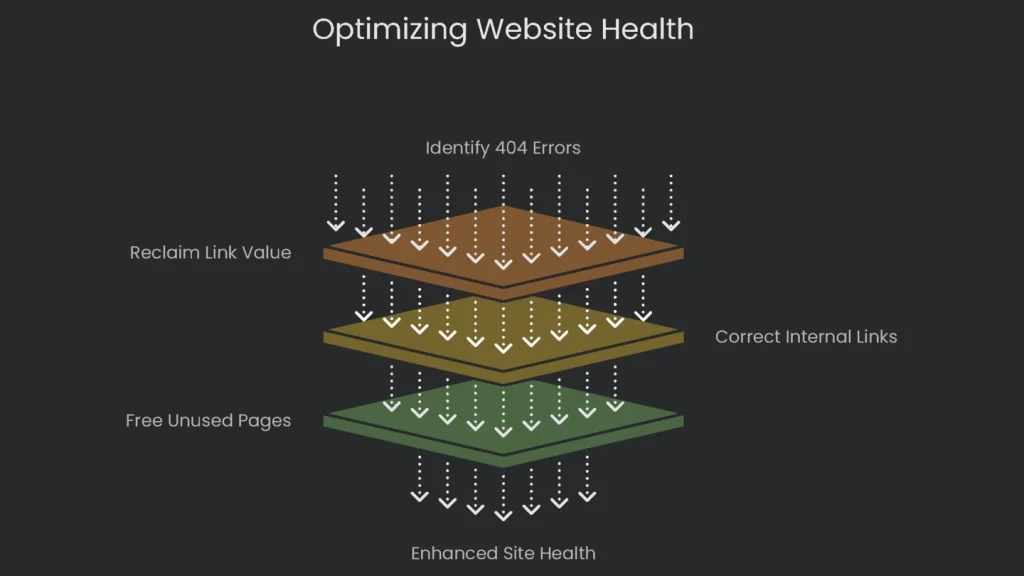
Mastering 404 pages marks a website as both technically capable and lovingly maintained. Fixing errors is no longer just housekeeping; it is an intentional strategy to sustain user trust, enhance crawl efficiency, and safeguard the hard-earned asset of link equity.
Therefore, moving from fixing errors in a spreadsheet to managing overall site health in a systematic, forward-thinking way is the new standard.
Key Takeaways: A Recap of the Prioritization Strategy
This discussion centers on a single theme: not every 404 is equally important. A winning resolution plan starts with smart, tiered prioritization that directs resources to the situations with the biggest potential return. The strategy can be boiled down to three focused, ordered steps.
- Reclaim lost link value: Start by finding any broken pages that still have external links pointing to them. These pages leak authority when they go down, so set up a 301 redirect to a similar, live page on your site to capture that value.
- Correct internal links: Next, hunt for internal links that lead to broken pages. These dead links frustrate visitors and search engines, making it harder for both to move around your site. Instead of redirecting, go to the page that contains the broken link and update it at the source.
- Free up unused pages: For pages that have been deliberately deleted and that do not have any other links pointing to them, letting them serve a 404 is fine. If you want to be more explicit, you can return a 410 “Gone” status, indicating the page is permanently removed. This can help search engines drop the page from their indices more quickly.
Set a Routine to Check for New 404s
Cleaning up 404 errors is never finished. You need a regular routine to keep track of any new ones that come up, so add this checklist to your ongoing site maintenance.
Websites are not “set and forget” projects. New pages get added, old content vanishes, and links frequently switch. Therefore, a repeatable process keeps sites running smoothly.
- Schedule Regular Audits: Set a calendar entry to run a complete audit, following the steps in this guide. For larger sites that change often, run a full audit every three months. Smaller sites that change less can settle for a check every six months.
- Integrate into Workflows: Make checking for broken links a standard task in every big project. Always include it in pre- and post-migration checklists, site redesigns, any URL structure changes, and during content clean-ups that prune large sections of a site.
- Automate Monitoring: Use up-to-date SEO tools to turn the old “check and forget” model into constant visibility. Tools like Ahrefs Site Audit let you schedule daily, weekly, or monthly crawls and fire off alerts as soon as a new broken link turns up. This way, you catch issues immediately, often before users even see them.
When website managers and SEO pros weave these tasks into their monthly check-ups, it keeps their sites strong, easy to use, and tuned to protect every bit of search engine reputation they’ve worked so hard to build.
Implementation steps
- Pull 404s from logs and GSC, sorting them by origin and level of significance.
- Go through and connect every broken link to up-to-date pages that still matter.
- Redirect top-traffic old pages to the new ones most relevant to them using a 301.
- Let totally deleted or irrelevant pages show a 404 or 410 error—no huge-direction-move misunderstanding.
- Roll the site back through and keep watch: add link checks to continuous integration so the fix sticks next time
Frequently Asked Questions
Are all 404 pages bad?
Not necessarily; I use them for content I’ve removed and there’s no suitable replacement.
When do I set up a redirect?
When there’s an obvious, relevant page to replace the original; otherwise, a 404 stays.
How do I locate 404 errors?
I check Google Search Console, analyze server logs, and run crawlers looking for broken links and requests.
Should I redirect everything to the homepage?
Definitely not. That creates soft 404s, confusing both users and search engines.
How can I stop fresh 404s?
Repair broken links, keep redirects updated, and notice changes right away.