
From parameter sprawl, broken internal links, and mixed content, the rest are pitfalls that directly impact your budget and trust. Such omissions are costly and utterly negligent. Use our prevention list to stay clean.
You’ve poured time and money into a stunning design, brilliant articles, and deep research. Yet your organic traffic still creeps along or even slides back. It feels like a cruel joke because every analytics chart repeats the same line: your efforts aren’t paying off.
More often than not, the culprit hides in your code. The villain goes by a single term: technical SEO. Search engines like Google try to read your site like a book. However, if they can’t follow the chapters, they close the cover. When one page behaves oddly, they may skip the rest. These hiccups stay invisible to readers but loom large for algorithms. Consequently, even brilliant content or a stunning layout can become invisible.
Don’t worry—we’ve got your back. In this article, we’ll lay out eight common technical traps that drag organic traffic down. You’ll learn why each one matters. Finally, we’ll walk you through point-by-point fixes to repair code, impress crawlers, and let traffic flow.
Robots.txt
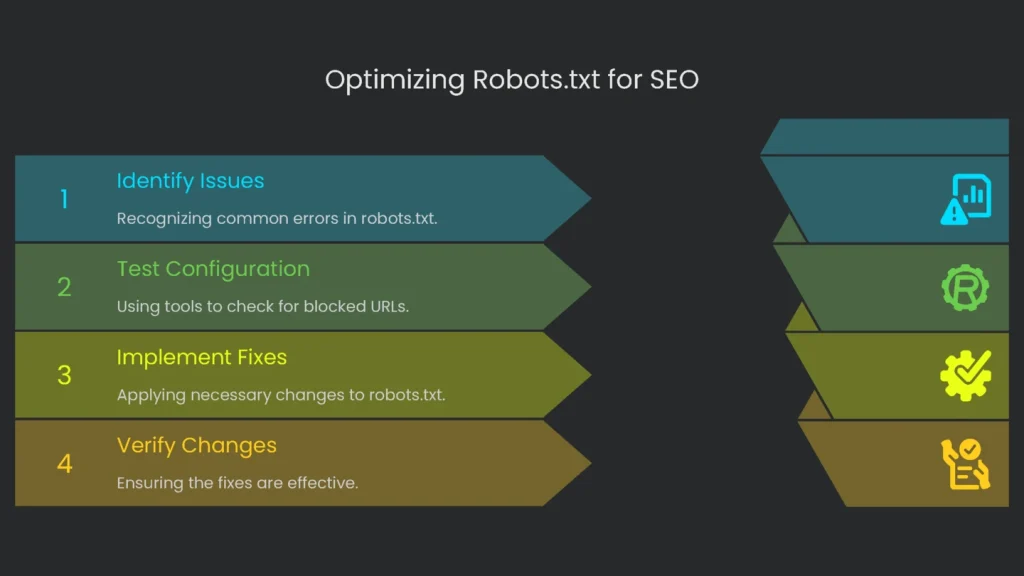
The robots.txt file is the welcome mat for search engine robots. It lays down quick ground rules before they explore. But one mistake can look like a giant “stay out” sign. As a result, the site goes ghost. No Google stop-by means no rankings.
Here’s the blooper that trips up many teams:
- You slipped in a huge “pass” sign:
Disallow: /bans the whole place. You often see this in dev mode to hide unfinished work. Then the site goes live, the rule stays, and boom—your pages vanish from search. Only a clear, quick fix will bring them back. - Blocking the view: Modern sites rely on CSS for layout and JavaScript for interactions. Old rules sometimes block these files. Therefore, Google sees a broken layout and can’t judge importance. It marks you down.
Also, a quick heads-up: robots.txt is about saving Google’s time, not hiding pages. It controls your “crawling budget,” which is the time a bot spends on your site. Many think a Disallow line keeps a page out of results. However, if another site links to it, Google may list the URL with a blank description. It looks sloppy and rarely earns a click.
How to Check
- URL test: Type yourdomain.com/robots.txt in a browser. Next, find any line that starts with
Disallow: /afterUser-agent: *. That is a red flag. - Google’s checker: In Google Search Console, open the robots.txt Tester under “Legacy tools and reports.” Then test single URLs to see if they’re blocked.
- Crawling tools: Run a site crawl with Screaming Frog. Afterward, open “Response Codes” and filter for “Blocked by robots.txt.” You’ll get a full list.
How to Fix
- Lift the block: If you see
User-agent: *followed byDisallow: /, delete theDisallow: /line. Alternatively, leaveDisallow:blank or use an empty robots.txt. - Let Google see what it needs: Remove rules that block required
.cssor.jsfiles. Consequently, Google can render pages like users do. - Keep it clean: A simple WordPress example:
- User-agent: *
- Disallow: /wp-admin/
- Allow: /wp-admin/admin-ajax.php
- Sitemap: https://yourdomain.com/sitemap.xml
- It works: That setup blocks the dashboard, allows needed AJAX, and points bots to your sitemap. In short, it’s clean and clear.
Poor Page Speed and Core Web Vitals
Traffic lost is revenue wasted. If your page crawls instead of loads, JavaScript can delay headlines and images. Therefore, visitors leave. Google’s research shows that at three seconds, many users hit “Back.” Meanwhile, they find a faster competitor. The result hurts user experience and rankings.
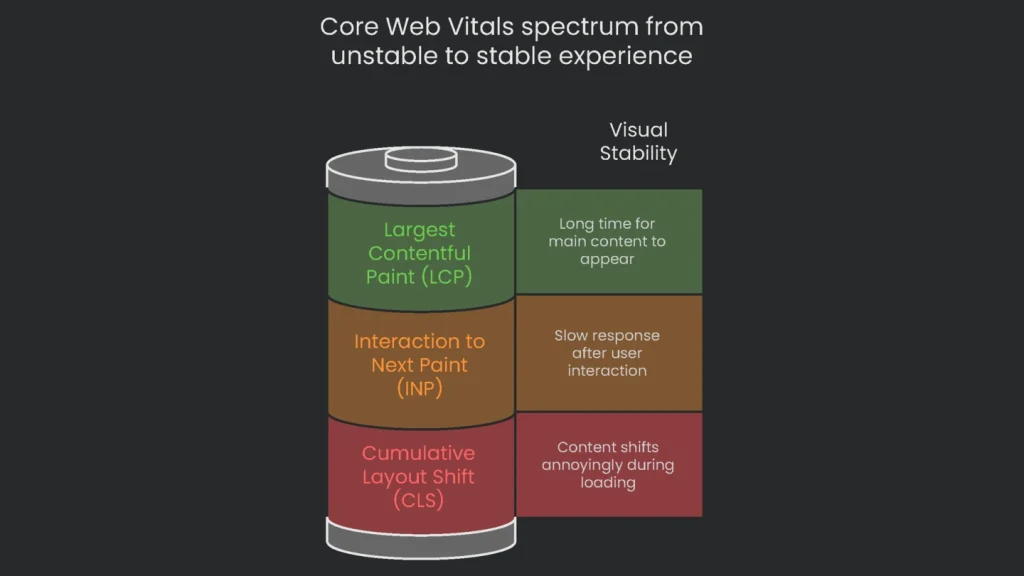
Google’s Page Experience update checks Core Web Vitals. These include load speed, interaction speed, and visual stability. If any score is low, Google assumes users won’t enjoy your site. Consequently, your ranking drops.
| Metric | Measures | Why It Matters to Users | Good Score |
| Largest Contentful Paint (LCP) | Loading performance: time until the biggest visible piece appears. | Answers “Is this working or frozen?”. A fast LCP feels responsive. | Under 2.5 seconds |
| Interaction to Next Paint (INP) | Responsiveness: speed after a tap, click, or keypress. | Answers “Did my tap register?”. A low INP feels snappy. | Under 200 milliseconds |
| Cumulative Layout Shift (CLS) | Visual stability: how much things move while loading. | Prevents mis-taps caused by shifting content or ads. | Under 0.1 |
When scores dip, investigate. For example, poor LCP often means a large, unoptimized hero image. A high CLS usually comes from images or ads without width and height set. As a result, the layout jumps and annoys visitors.
How to Check
- Google PageSpeed Insights: Open the tool, paste a key URL, and click Analyze. You’ll see mobile and desktop scores and real-user data. Then review “Opportunities” and “Diagnostics” for fixes.
- Google Search Console: The Core Web Vitals report under “Experience” groups URLs into Good, Needs improvement, and Poor. Therefore, you can spot patterns across many pages.
How to Fix
Speeding up your site doesn’t have to be painful. Start with high-impact wins.
- Supercharge image handling: Big images are top speed killers. Therefore, nail image optimization.
- Shrink images: Compress with TinyPNG or use the Smush plugin. Aim for most images under 200 KB.
- Use modern formats: Convert to WebP to cut size by ~30% versus JPEG.
- Turn on lazy loading: Load images as they enter the viewport. Consequently, LCP improves.
- Minify code: Remove spaces and comments from CSS, JS, and HTML. Minification shrinks files and speeds delivery. Most caching tools like WP Rocket can do this.
- Use browser storage: Browser caching stores logos and styles locally. Therefore, repeat visits load faster.
- Cut wait time: Improve server response time (TTFB). Aim under 200 ms. If needed, upgrade hosting to handle traffic.
Hazardous Duplicate Content Problems
Why You Should Care
Duplicate content creeps in when the same text appears at more than one URL. You may not get a penalty. However, the damage is real.
- Mixed signals: Google may see two versions and guess which is the “real” one. As a result, your own pages compete and both can drop.
- Watered-down links: Backlinks split across multiple URLs. Consequently, neither version gathers enough authority to rank.
- Crawl drain: Bots waste budget crawling copies instead of new content. Therefore, fresh pages stay invisible.
Most sites don’t plan this. It happens with http vs. https, www vs. non-www, and tracking or filter parameters. For example, an eCommerce category can generate many near-identical URLs.
- yourstore.com/womens-shoes
- yourstore.com/womens-shoes?sort=price_high_to_low
- yourstore.com/womens-shoes?color=black
To a shopper, the list looks the same. However, Google sees three pages. Duplicate land awaits.
Here’s How to Find Out
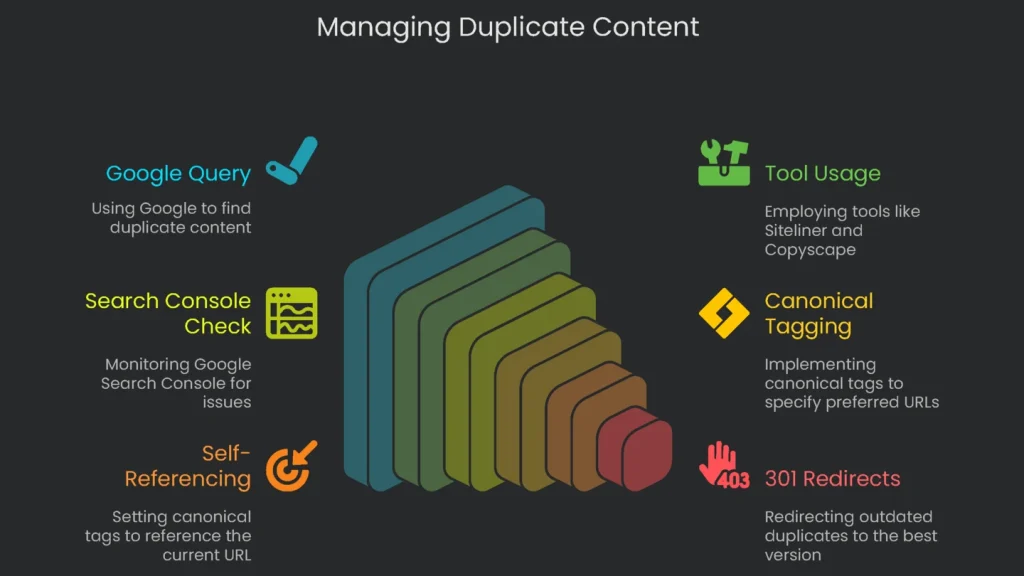
- Quick Google query: Search a unique 8–10-word sentence in quotes. If several URLs on your site appear, you’ve got duplicates.
- Grab a handy tool: Use Siteliner for internal copies. To spot external copies, try Copyscape. It’s the pro’s pick.
- Look in Google Search Console: Watch for “Duplicate without user-selected canonical.” This means Google found copies and needs a preference.
How to Fix
You don’t need to erase every duplicate. The goal is to point search engines to one version. That process is canonicalization.
- Add the
rel="canonical"tag: Place it in the<head>of duplicate pages and point to the preferred URL. See Google’s guide on consolidating duplicate URLs. - Use self-referencing canonicals: On each URL, set the canonical to itself. A self-referencing canonical prevents confusion from odd parameters.
- Apply 301 redirects: For outdated duplicates, add a 301 redirect to the best version. Consequently, link equity transfers.
Missing Internal Links and 404 Pages
Why This Hurts
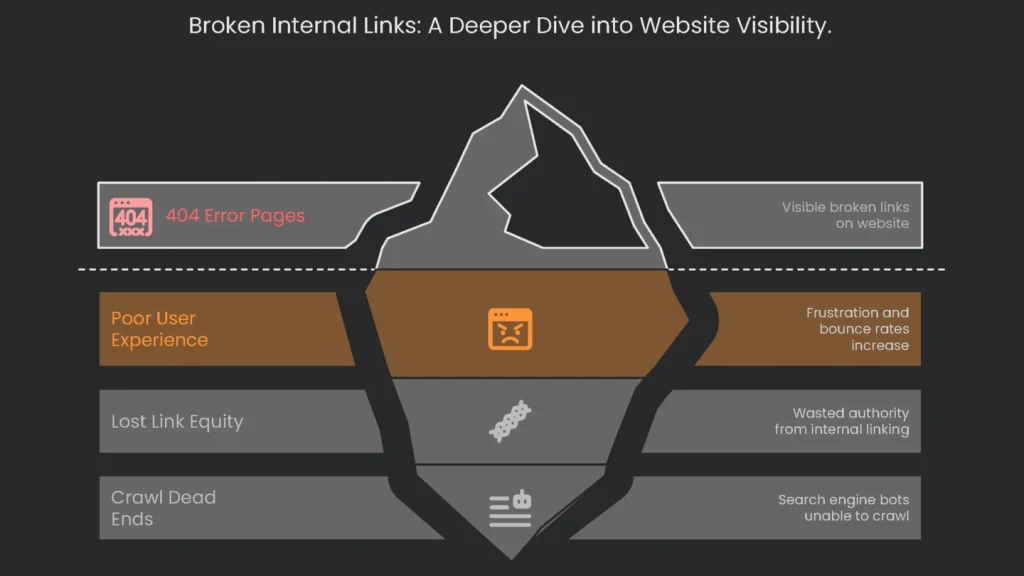
Internal links guide users and bots. If a link targets a missing page, you’ll see a 404 Not Found error. A few are fine. However, too many can sink visibility.
- Poor experience: A promising click that lands on an error kills trust. Users bounce to competitors.
- Lost link equity: Internal links pass authority. Broken links waste it.
- Crawl dead ends: Bots hit 404s and stop. Consequently, they miss deeper pages.
Impact depends on location. A broken link on the homepage is severe. One buried in a decade-old post matters less. Therefore, fix the highest-impact links first.
How to Check for Broken Links
- Google Search Console: In “Coverage,” open “Excluded” > “Not found (404).” Then use “Inspect URL” to see the referring page.
- Website crawlers: Try Screaming Frog SEO Spider, or audits in Ahrefs or Semrush. You’ll get 404s, sources, and anchor text.
- Online checkers: Use a simple web tool like deadlinkchecker.com for quick scans.
Here’s How to Fix Broken Links
- Fix the link directly: Correct typos or swap the URL for the new address. It’s the cleanest option.
- Add a 301 redirect: If the old page is gone, redirect to the best replacement. For example, point “2022 Tips” to “2024 Tips.” You’ll preserve most link value.
- Remove the link: If no relevant target exists, delete the link to avoid dead ends.
Crummy or Absent XML Sitemap
Why It Hurts
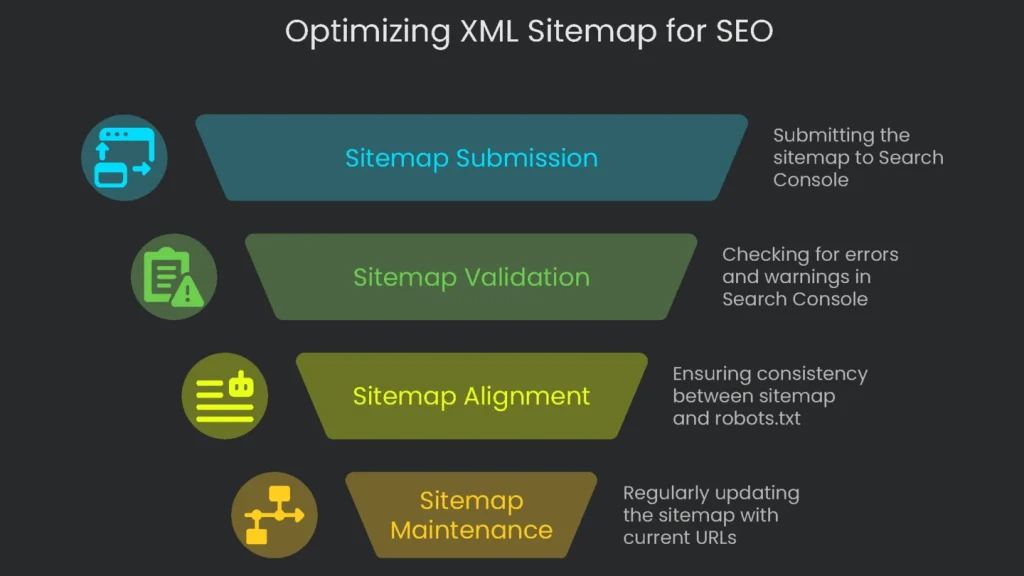
An XML sitemap is a cheat sheet for search engines. It lists your most important URLs. Humans rarely see it. Google does. Therefore, it speeds discovery and indexing.
- Quickens discovery: Big sites and new sites benefit most. A sitemap gives Google a master list.
- Signals matter: Including a URL says, “This page counts.” You can add a
lastmodhint to invite bots back. - Dirty sitemaps hurt: Don’t include 404s, redirects, or noindexed URLs. Otherwise, bots waste crawl budget and Search Console fills with errors.
Keep robots.txt and your sitemap aligned. If the sitemap lists a URL that robots.txt blocks, you send mixed signals. Consequently, trust drops.
How to Check
- Find your file: Visit yourdomain.com/sitemap.xml or yourdomain.com/sitemap_index.xml. Shopify and Squarespace generate one automatically.
- Peek in Search Console: In “Sitemaps,” confirm submission, last read date, URL count, and warnings. A “Success” still deserves a click for details.
How to Fix
- Create a clean, dynamic sitemap: Use tools that update automatically.
- Create and submit your sitemap:
- If your CMS can’t generate one, use xml-sitemaps.com. Then upload the file to your server.
- In Search Console, open “Sitemaps,” paste the URL (for example, https://yourdomain.com/sitemap_index.xml), and click Submit.
- Stay within best practices:
- Include only live, indexable URLs. Exclude broken pages, redirects, and noindex items.
- Respect limits: 50,000 URLs or 50 MB per file. Use an index if needed.
- Link it in robots.txt with: Sitemap: https://yourdomain.com/sitemap_index.xml.
Skipping 301 Redirects
Why You Should Care
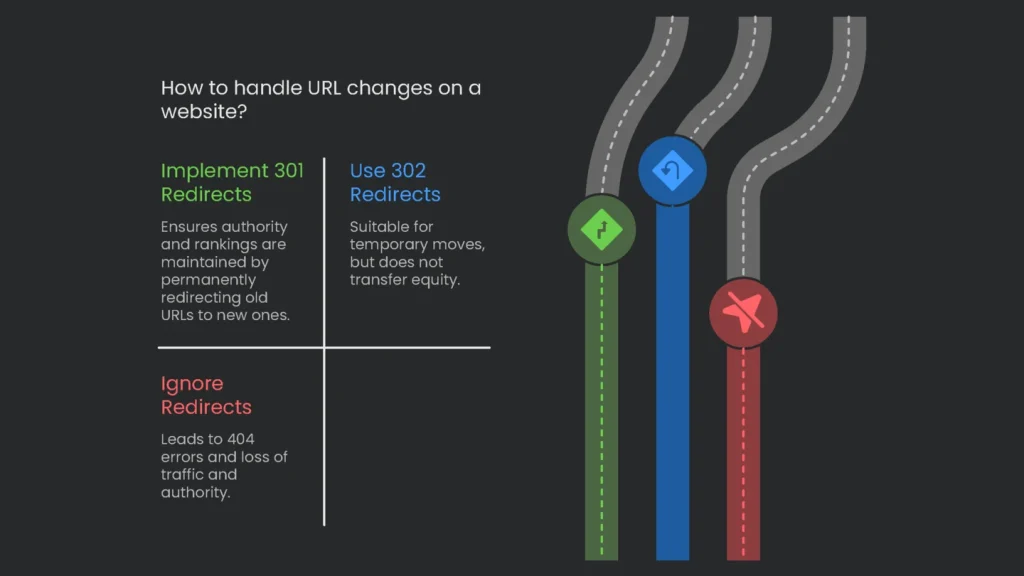
Websites change like rooms after a cleanup. We remove, rename, and move things. However, when URLs change without a 301 redirect, visitors hit a 404. Suddenly a once-busy page is orphaned and its authority evaporates.
- Authority vanishes: Backlinks power rankings. Without a permanent redirect, their value goes nowhere.
- The mighty 301: A 301 says, “Moved for good.” Browsers and bots transfer signals to the new URL. Consequently, rankings and equity follow.
- Save 302 for temporary moves: A 302 keeps the old address “active.” Therefore, equity won’t transfer. Use 301s for permanent changes.
The issue often starts at kickoff. Teams forget to map old URLs to new ones. Everyone polishes the design, but old links point to nothing. Traffic drops, and confusion spreads.
How to Confirm the Concern
- Manual check: Enter the old URL in your browser. If you land on a 404, the redirect is missing.
- Header checker: Use a free HTTP header tool. You want “301 Moved Permanently” with the new location.
- GSC 404s: In Search Console, review “Not found (404).” Prioritize URLs that still get external traffic and add 301s.
How to Fix
- WordPress plugins: Install the free Redirection plugin or Yoast SEO Premium for an easy redirect manager.
- Server-side rules: On Apache, add lines to .htaccess such as:
Redirect 301 /so-long-old-page.html https://mydomain.com/welcome-to-new-page/ - Five rules of thumb:
- Match intent: Redirect to the closest relevant page, not the homepage.
- Avoid chains: Point A → C directly. Fewer hops mean faster loads and better equity transfer.
Skipping HTTPS
Why You Should Care
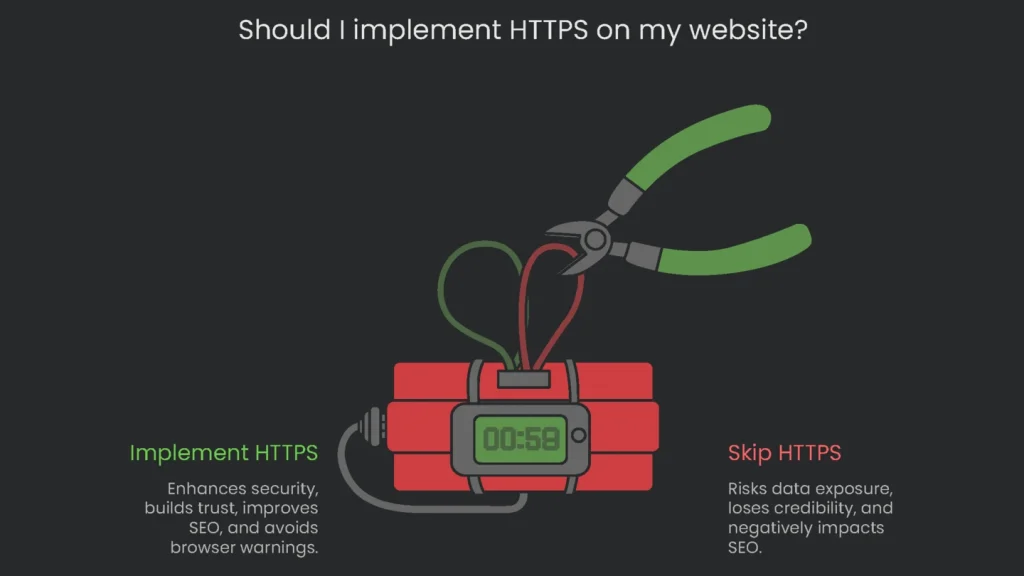
Today, a site must be secure. HTTPS adds an “S” for “Secure,” which encrypts data in transit. Getting a certificate takes minutes. Therefore, skipping it is both a tech and business mistake.
- Loses credibility: Browsers label HTTP as “Not Secure.” Visitors leave fast, especially on checkout or forms.
- Exposes private info: Without encryption, names, passwords, and payments are readable in transit. An SSL certificate protects users.
- Ranking boost: HTTPS is a light ranking signal. More importantly, warnings hurt trust and clicks.
HTTPS isn’t optional anymore. In short, users expect the padlock. Sites on plain HTTP look dated and unsafe. That judgment hurts sales and repeat visits.
How to Test
Open your site and check the address bar.
- All secure: You see a padlock and https://.
- Not secure: You see warnings or http:// without encryption.
How to Fix
- Get an SSL certificate: Many hosts provide free certificates via Let’s Encrypt. Enable it in your control panel or ask support.
- Install and activate: Shared hosting often auto-configures it. On custom servers, paste the cert in your control panel. Your host should have guides.
- Add a site-wide 301 from HTTP to HTTPS: Without this, both versions exist and create duplicates. Therefore, redirect everything to HTTPS to consolidate signals and protect users.
Weak Mobile Experience
Why This Matters
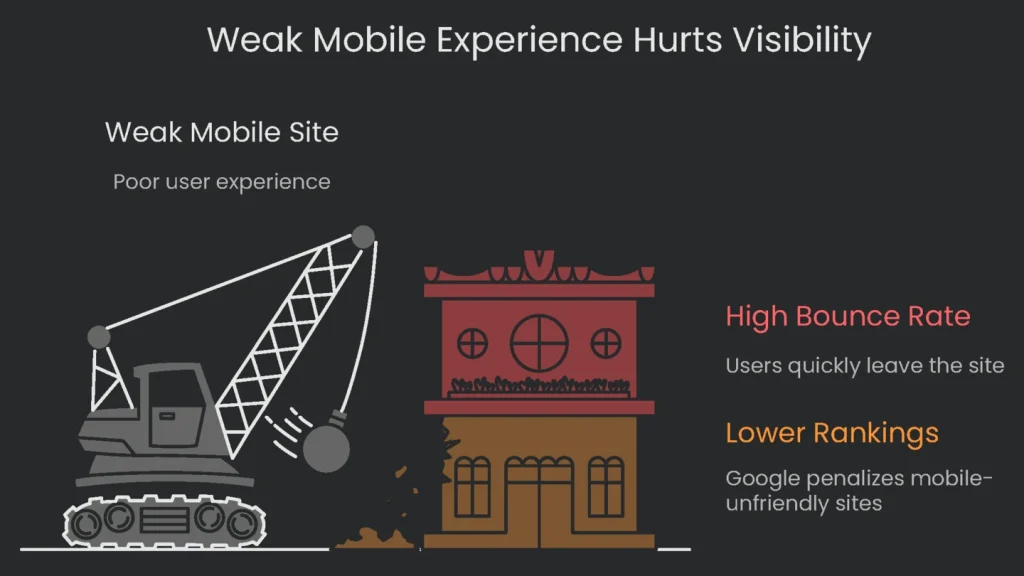
Phones are pocket computers. Most traffic now flows through them. Google adjusted ranking rules to match. Therefore, a weak mobile site is a major risk to visibility.
- Google thinks phone first: With mobile-first indexing, Google evaluates your mobile version first. If mobile is thin or slow, rankings can drop everywhere—even on desktop.
- Phone users leave fast: Small text, tiny tap targets, and pop-ups trigger quick bounces. Consequently, Google trusts the page less.
When mobile-first indexing rolled out, the rules changed. If content or links are missing on mobile, Google assumes they don’t exist. Therefore, design mobile-first. Desktop is now optional polish.
How to Check
- Google’s Mobile-Friendly Test: Enter your URL to see pass or fail with a mobile screenshot and issues.
- Real-world test: Use your phone. Can you read without zooming? Is the menu easy to tap? Can you submit a contact form without friction?
- Search Console: Check “Mobile Usability” under “Experience.” It groups problems by type for faster fixes.
How to Fix
- Go responsive: Use a responsive design so layouts resize across screens. One codebase, all devices.
- Follow mobile best practices:
- Use readable fonts: Set body text to at least 16 CSS pixels.
- Make tap targets large: Aim for 48×48 CSS pixels with spacing.
- Avoid intrusive pop-ups: Let visitors read first.
- Set the viewport: Add the meta viewport tag in
<head>so mobile renders correctly.
Wrap-Up
Key Takeaways
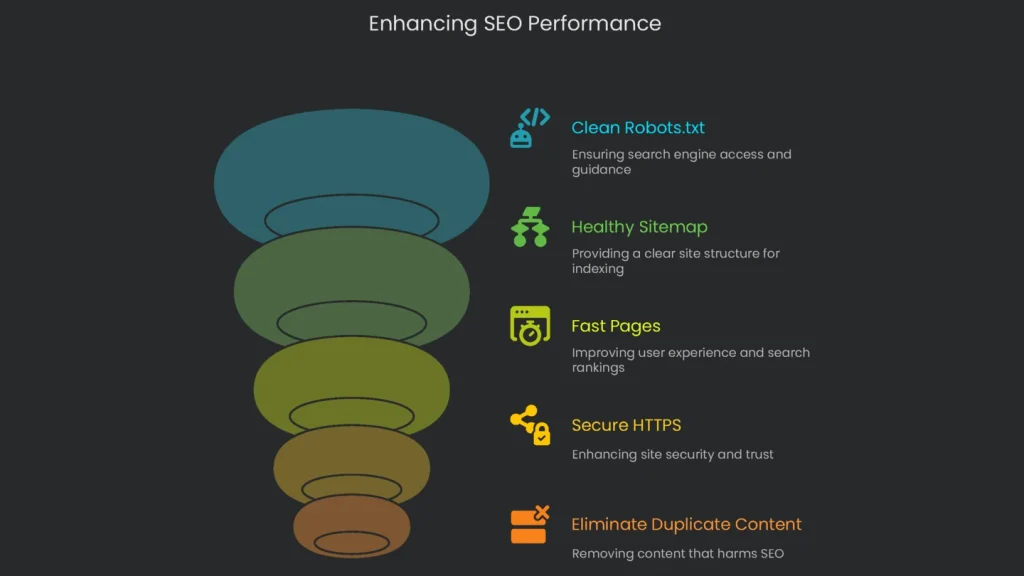
Technical SEO isn’t a secret recipe. It’s the frame that lets your design and content shine. Therefore, guide Google with clean robots.txt, a healthy sitemap, fast pages, and secure HTTPS. As a result, rankings and conversions improve.
Next Steps
Make these checks part of a monthly routine. Finally, if you’d like expert help, our Technical SEO Audit digs under the surface, prioritizes fixes, and gives you clear, step-by-step actions to restore growth.
Implementation steps
- Repair dead links, axe excess redirects, and make the path clear.
- Unify all URLs (HTTPS, one prefix, no trailing slashes, all lowercase) and surface a single canonical one.
- Keep key assets (assets, scripts, and layout) open to crawlers in robots.txt to prevent silos.
- Tame query params, mine for duplicate pages, and fold facets thoughtfully.
- Schedule quality checks on every system push to spot slips instantly
Frequently Asked Questions
What slip-ups to fix?
Repair leaking links, tidy parameter muddle, sort mixed protocols, and nail missing canon tags.
Does robots.txt wipe pages?
No—use the noindex option or trash the file to clean the slate.
Can I leave 302s for ever?
Not unless the live page is temporary; 301s serve long-term signal merger gold.
Should I stop CSS and JS?
No—bots unfurl the real page so blocking ripples indexing damage.
How to stop do-overs?
Embed testing checkpoints and watchdog tools in your deployment cycle.