
No need to panic. To rehabilitate yourself, correlate technical changes versus changes to coverage reports, updates, competitors, links, and prioritize to restore relevance alongside crawl health.
Stay calm. Investigate first. When your rankings and traffic fall overnight, panic is natural. However, rushing to rewrite pages, copy links, or overhaul design often makes things worse. Knee-jerk changes can fix one itch and create two new ones. The drop is a warning bell, not a diagnosis. Therefore, watch everything before you change anything.
Think of this guide as your calm pilot’s checklist. We’ll work top to bottom. First, fix the easy stuff. Next, save the big tools for last. In short, few issues can sink a site if you don’t miss this checklist. Follow along and trade shock for data. We’ll track down the real gremlin and pull the one lever that fixes it without breaking a single premium page.
Look at Your Data First
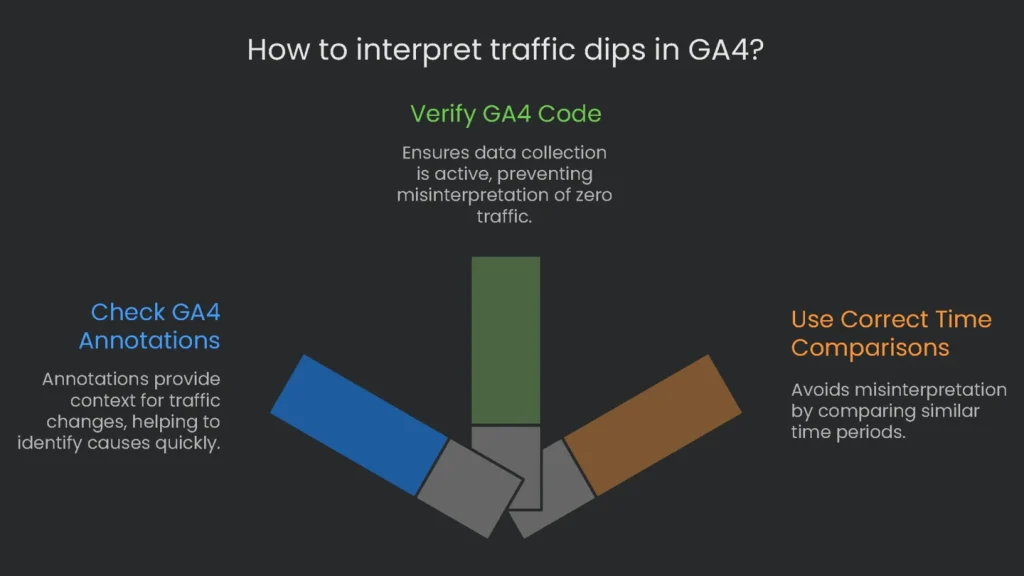
Put GA4 Annotations to Work
GA4 added a handy annotations feature. It lets you pin notes on reports whenever something important happens. These notes sit right next to the chart. Consequently, a dip in traffic is easier to explain at a glance.
How you check: Open your GA4 account and go to the report that shows the drop (for example, Reports > Acquisition > Traffic acquisition). In the time-series chart, check the dates where you see a sudden dip. You should see small colored icons below the line. Just hover to see a pop-up note such as “New Website Version Deployed” or “Server Maintenance Window.” For the complete list, open Admin > Data stream > Annotations.
- Why It Matters: When an annotation matches the drop date, you’ve found your best starting clue. It narrows the mystery to one event—like a big site change—so you can skip wondering whether a secretive penalty hit your site.
Check If Your GA4 Code is Running
Every update—installing a plugin, swapping a theme, or tidying code—can break GA4. If the tag isn’t firing, GA4 can’t collect data. As a result, your dashboard may show “zero” traffic. Don’t panic. Check first.
- Method 1: GA4 Realtime Reports: This is the fast, low-friction check. Sign in to GA4 and open the Realtime report. In another window, visit your site. Wait one minute. If your visit appears, the tag is firing.
- Method 2: Use Developer Tools: Open your site, launch Developer Tools (Ctrl+Shift+J on Windows or Command+Option+J on Mac), and switch to “Network.” Type collect in the filter and refresh the page. Find the request to google-analytics.com with v=2. If it returns a 204 status, your analytics hit was sent successfully.
- Method 3: Run Google Tag Assistant: If you use Google Tag Manager, open Tag Assistant, enter your domain, and click “Debug.” In the left “Tags” column, confirm your GA4 Measurement ID (starts with G-XXXXXXXXXX) is firing.
- Method 4: Peek the Page Source: Right-click, choose “View Page Source,” and search for gtag.js. If the tag appears, it likely loaded. However, the ID could be wrong or the script blocked by an ad-blocker.
Use Correct Time Comparisons
Compare the right days so you stay calm. Most B2B sites spike on weekdays and dip on weekends. Therefore, comparing a busy Tuesday to a quiet Sunday can look terrifying.
- Smart Save Time: If traffic dips, hit the “Compare” button in the date picker. Choose “Preceding period, by day” to match Monday to Monday and Tuesday to Tuesday. For shopping seasons like Black Friday, use “Same period, last year.”
- Be Patient: GA4 can take up to two days to finalize data. Consequently, “today” may look incomplete. If the dip is recent, wait for the numbers to settle.
This first step sets the tone for everything else. If you don’t verify data first, you’re firing before you aim. Clear data keeps your next moves grounded in facts, not ghosts.
| Comparison Option | Description | Best Use Case |
| Preceding period (same day of week) | Compares the current range to the previous range, matching weekdays. | Week-over-week or month-over-month checks where weekly patterns matter. |
| Same period last year (same day of week) | Compares the current range to the same dates last year, matching weekdays. | Seasonal businesses that must separate real drops from expected seasonal dips. |
| Preceding period | Compares the current range to the immediately prior range of equal length. | Quick snapshots when weekly seasonality is minor. Be careful across weekends. |
Note: “Same period last year” is ideal for holidays like Black Friday when calendar timing repeats. Therefore, trends stay comparable.
Look for Google Penalties
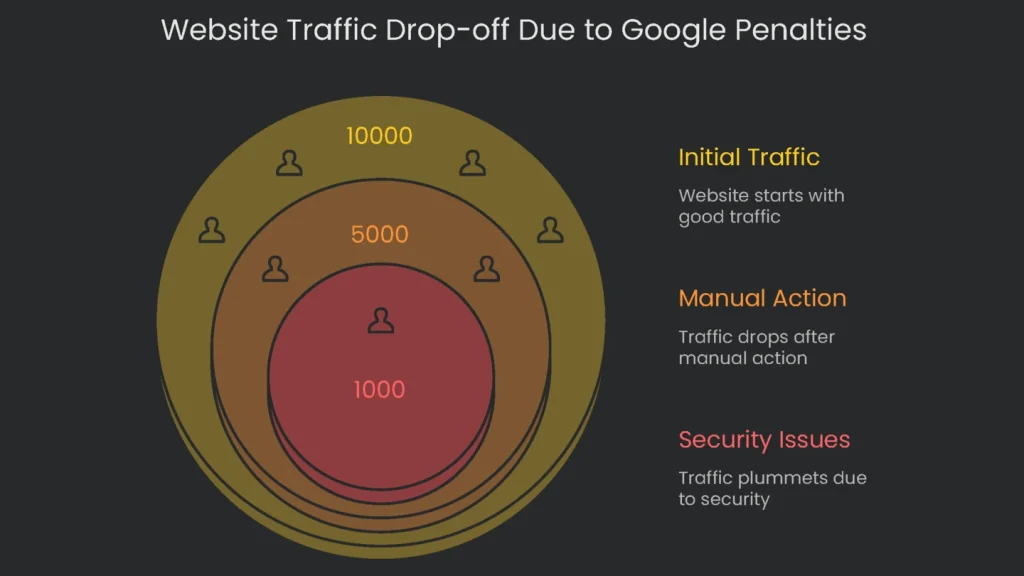
After the numbers check out, shift to Google for answers. Open Google Search Console. It’s the vault for penalties, alerts, and oddities. Getting a Manual Action or a Security Notice is a siren. These are not tiny algorithm shuffles. They are hands-on penalties or health alerts. Therefore, fix them before anything else.
The Manual Actions Report
A Manual Action happens when a Google reviewer finds a clear spam violation, like deceptive titles, keyword stuffing, or bad backlinks. Penalties may hit a few pages or, worst case, the whole site.
- Where to Find It: In Search Console, open “Security & Manual Actions” > “Manual Actions.”
- Understanding the Report:
- All Clear: A green check and “No issues detected” mean no manual penalty.
- Action Needed: If flagged, you’ll see the problem—such as “Unnatural links to your site” or “Thin content with little or no added value”—and example URLs.
When a manual action appears, it is usually the main reason for a sudden, sharp drop.
The Security Issues Report
This report warns when your site might harm visitors. It flags malware, hacked pages, or risky downloads.
- Where to Find It: In “Security & Manual Actions,” click “Security Issues.”
- Impact: Google may show “This site may be hacked” in results or a red warning page in Chrome. As a result, traffic dries up regardless of rank.
Treat this like a 911 call for both rankings and user trust.
How to Recover
Freeze other tasks. Don’t tweak menus or add keywords. Go straight to the reported issue. Clean the site, remove harmful code or content, and fix every listed problem. Then click “Request Review” in Search Console. Provide a plain recap of the issue, your fixes, and proof screenshots.
A manual action or security alert is no longer an “SEO problem.” It is a business-risk alert. Therefore, respond immediately.
| Common Manual Action | What Google Detected | What to Do First | Notes |
| Unnatural links | Fake-looking links pointing to your pages to inflate importance. | Run a full backlink report. Remove or request removal of toxic links. | Document outreach and fixes before you submit. |
| Thin or low-value content | Too many pages with little text or generic listings. | Audit content. Remove zero-value pages, merge duplicates, and improve the rest. | Focus on helpful, original insights. |
| Pure spam | Techniques like cloaking and scraping. | Remove all spam tactics and clean the site end-to-end. | Sometimes a rebuild is fastest. |
| Hacked content | Attackers added pages or links you didn’t create. | Harden security, update plugins, change root and admin passwords, and delete injected pages. | Fix the vulnerability that allowed entry. |
| User-submitted spam | Comment areas, forums, or profiles filled with spam links. | Delete spam and enable moderation. | Add CAPTCHA and approvals to prevent repeats. |
The Tech Audit
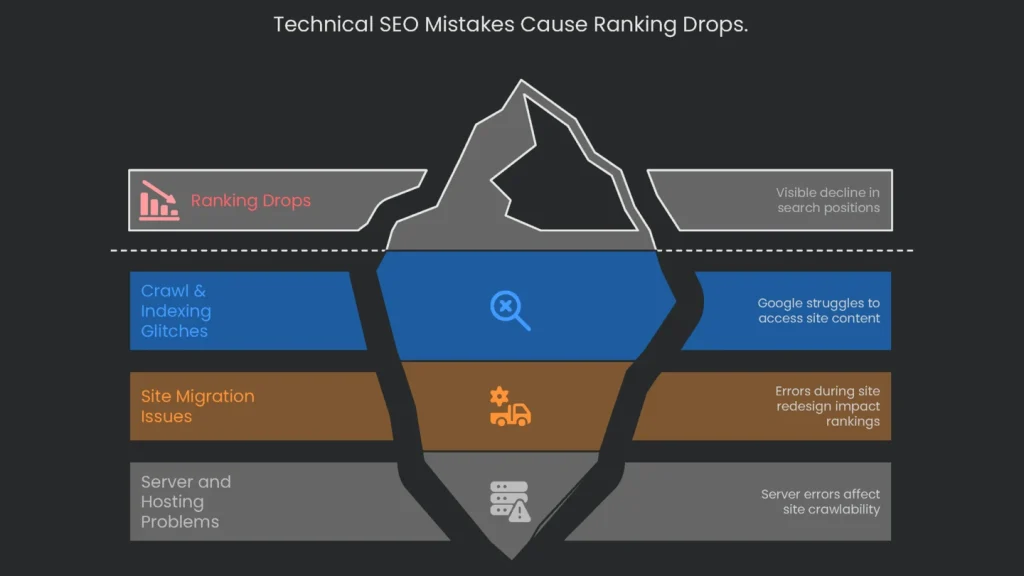
With clean data and no penalties, inspect the tech stack. Most ranking drops trace to technical SEO mistakes. They sneak in during updates, server tweaks, or CMS changes. Therefore, fixing small issues can restore visibility fast.
Crawl & Indexing Glitches
If Google can’t crawl or index pages, they cannot rank. Consequently, start here.
- Blocked by robots.txt? The robots.txt file controls crawler access. A typo can shut the door on the whole site. The most dangerous line is: User-agent: * with Disallow: /. This often happens when a staging site goes live. In Search Console, double-check your file.
- Accidental noindex: A noindex directive in HTML or headers can bench key pages. A CMS switch can spread it by mistake.
- How to Fix: Use a site crawler tool (free for 500 URLs). Open “Directives,” filter by “Noindex,” and restore indexing for important pages.
- GSC “Pages” report: The Index Coverage report (now “Pages”) is your X-ray. A rise in “Not indexed” URLs that matches a traffic plunge is a red alarm. Drill into reasons like “Server error (5xx)” or “Blocked by robots.txt.”
Site Migration & Redesign Warnings
Moving domains, turning on HTTPS, or redesigning a site are high-risk. If you skip steps, rankings can slide fast.
- Missing 301 redirects: A 301 redirect passes authority to the new URL. Without it, pages must rebuild from zero.
- How to Check: After launch, use Screaming Frog in “List Mode.” Feed a list of old URLs and crawl. Any 404 means the redirect failed. Fix immediately.
- 404 error surge: New designs often orphan images, links, or sections. If unredirected, they return 404s. A spike in 404s in GSC “Pages” confirms missing handoffs.
Server and Hosting Woes
Your site lives or dies on server health. Therefore, watch errors closely.
- 5xx server errors: Codes starting with “5” are server-side failures. If Googlebot hits too many, it crawls less and may distrust pages.
- How to Check: In GSC “Pages,” spot spikes. Also open Settings > Crawl stats for trends. You may need a developer or host to fix the root cause.
- Typical 5xx codes:
- 500 Internal Server Error: Generic server failure. Prolonged issues risk de-indexing.
- 502 Bad Gateway: Upstream server error. Overload or misconfig can block crawls.
- 503 Service Unavailable: Maintenance or overload. If persistent, crawling suffers.
- 504 Gateway Timeout: Upstream timeout. Frequent timeouts signal instability.
One technical glitch can trigger others. For example, a bad robots.txt can hide your noindex tag. Then “zombie” pages slip into SERPs. Therefore, think probe-first, fix-second.
Look for Algorithm Changes
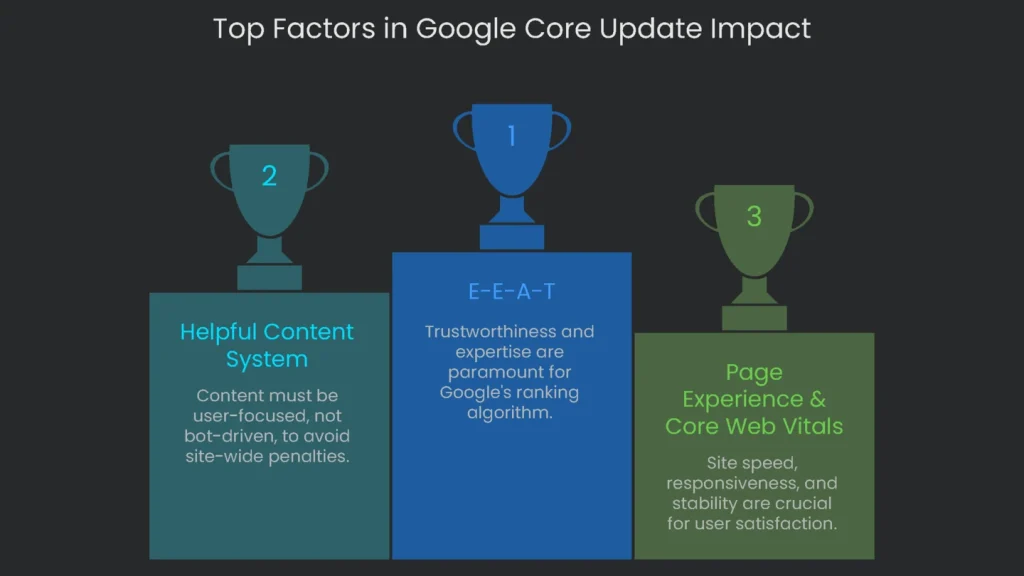
If data looks clean, no penalties appear, and tech checks out, a sudden drop may be external. A broad Google Core Update can reshuffle rankings. This isn’t a patchable bug. It is a re-evaluation.
How to Spot an Update
Match the date of your drop to an announced update.
- Official Notices: Check the Google Search Status Dashboard for start and end dates. The Google Search Central Blog often adds context.
- Industry Reports and Trackers: Sites like Search Engine Land and Search Engine Roundtable post live analysis and reactions.
- Ranking Trackers: Tools like CognitiveSEO Signals, SEMrush Sensor, and MozCast chart volatility. A sharp spike suggests an update.
Focus on Overall Quality
Sliding after a core update is not punishment. Google is recalibrating what helps users most. Therefore, don’t chase a missing meta tag. Commit to steady, site-wide upgrades. Add value, tighten facts, and train authors. Improvements register when Google reassesses holistically.
Which Quality Standards Are in Focus
Core updates re-measure sites against key quality definitions. Today, E-E-A-T leads the way. Trust sits first. If trust wobbles, the rest collapses. Experience means first-hand knowledge shines. Consequently, pages with clear, safe, expert signals tend to win.
- The Helpful Content System: It checks if content is written for people, not bots. Too much unhelpful content nudges the whole site down.
- Page Experience & Core Web Vitals (CWV): LCP for load speed, INP for responsiveness, and CLS for stability. HTTPS, mobile-friendliness, and sane ads matter too.
When stakeholders push back, use the quality guidelines. Ask, “Does this page show first-hand expertise?” Then ask if readers leave fully equipped to act.
Look at On-Page and Off-Page Signals
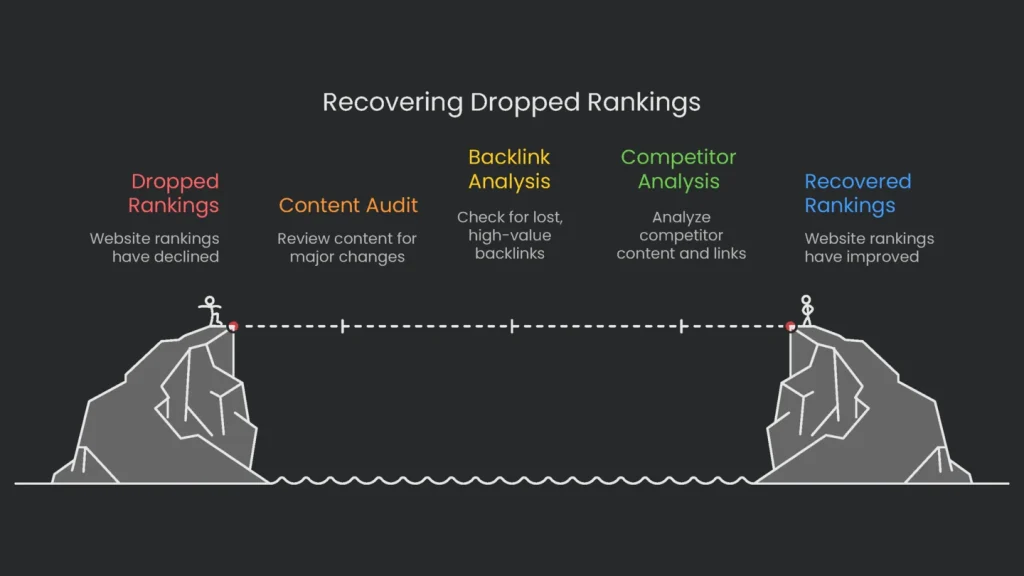
Content Changes
Small edits can move ranks up or down. Therefore, review what changed near the drop.
- Major content changes: If you removed a meaty FAQ from a key page, relevance may drop. Use change-tracking features to see what was added, shifted, or cut.
- Content decay: Over time, stats age and rivals refresh guides. Gradual decay can slip ranks even without a single big edit.
- Pruning pitfalls: Deleting pages without redirects can erase link equity. Consequently, rankings across related pages can sag.
Lost Backlinks
Organic backlinks act like votes. Lose votes and rank can slide.
- How to Check: In a tool like Ahrefs, open Site Explorer > “Backlink profile” > “Lost.” Set dates around the drop.
- What to Look For: Focus on links from sites with high Domain Rating (DR). High-DR losses hit harder.
- Action Plan: If a top link disappeared because the source is now 404, contact the site owner. Suggest replacing the broken link with your page. This broken link building step can recover lost links and sometimes add new ones.
If your pages seem fine, check competitors. Do they answer the query more clearly? Did they earn fresh high-authority links? Do they show stronger E-E-A-T? As a result, you’ll learn what to improve rather than guessing.
Create Your Recovery Plan
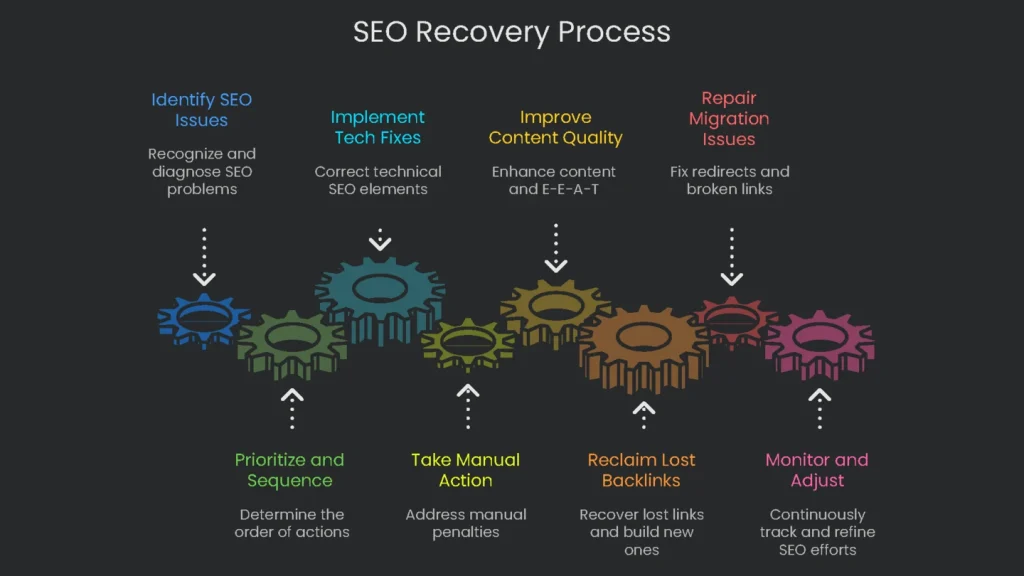
Prioritize and Sequence
Insights need action. Write a plan the whole team can follow. A crawl-block fix is a quick task. A core update recovery is a program. Therefore, set a timeline, assign owners, and work in the right order.
Recommended Fixes
- Tech Fixes: Fix robots.txt, remove accidental noindex, and repair 301s first. Then wait for recrawls and confirmations.
- Manual Action Fix: Resolve the cited violation completely. Pause other SEO tweaks. Submit a reconsideration request and wait for review.
- Quality Fixes: After a core update hit, audit content, strengthen E-E-A-T (author bios, sourcing), and improve page experience. Results align with future updates.
- Lost Backlink Fix: Reclaim removed links and run ongoing outreach. Authority recovery takes time.
- Migration Repair: Audit redirects, fix broken links, resolve 404s, and submit a fresh sitemap. Expect a significant project.
Recovery Timeline Table
The table turns findings into a clear plan. It outlines actions, timing, and priority.
| Diagnosis (Why Your Site Dropped) | Recovery Plan | Expected Time | Priority Level |
| Wrong robots.txt or noindex tag | Fix robots.txt or remove noindex on affected pages. Request re-indexing in Search Console. | 1–7 days after recrawl | Critical |
| Manual Action | Fix the cited violation across the site. Send a complete, honest reconsideration request. | 2–4 weeks after submission | Critical |
| Core Algorithm Changes | Run a site-wide quality review using E-E-A-T and Helpful Content guidelines. Improve content, UX, and expertise. | 3–9 months, often next core update | High (Strategic) |
| Migration Went Wrong | Check old URLs for missing redirects. Apply 301s. Repair internal links and 404s. Submit a new sitemap. | 1–3 months | Critical |
| Lost Key Backlinks | Identify impactful lost links. Request reinstatement. Start new high-quality link acquisition. | 2–6+ months, ongoing | High (Long-term) |
When to Ask for Outside Help
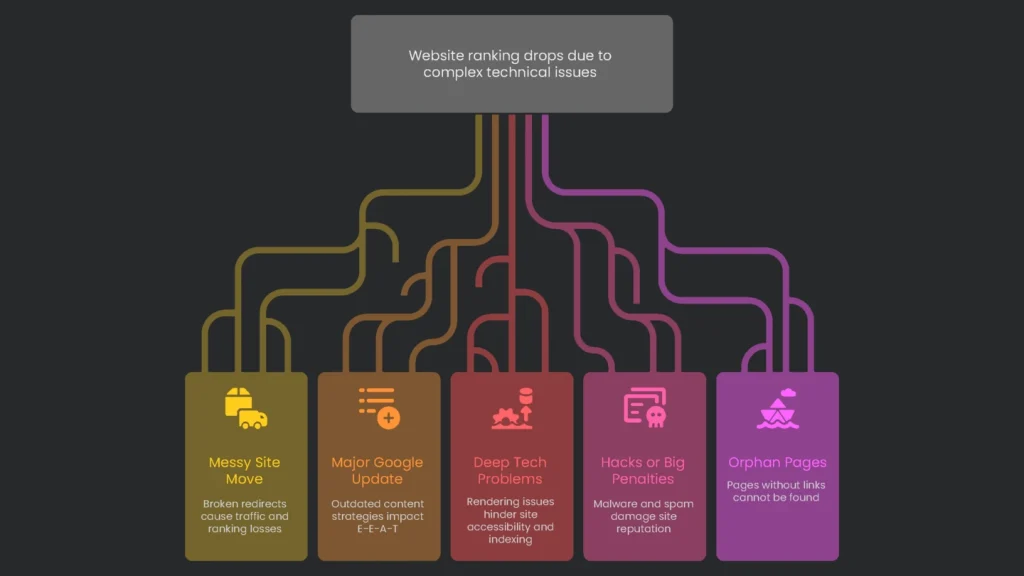
Situations to Escalate
This checklist solves most drops. However, some issues are tangled or cross several specialties. In those cases, call a pro.
- Messy Site Move: A flood of 404s, broken redirects, and big traffic losses favors expert recovery.
- Major Google Update: After a core update, you may need a new playbook for content, E-E-A-T, and experience.
- Deep Tech Problems: Rendering issues, international SEO conflicts, or server headaches need specialized tools.
- Hacks or Big Penalties: Malware removal, “Pure Spam” penalties, or compromised sites require seasoned handling.
Get Expert Support
After you tick every box and the drop still defies logic, bring in a specialist. Our crew lives in these details. Diagnosing and fixing tough ranking nosedives is what we do. We’ll help you spot the issue and guide the recovery. Drop by and let’s map out the steps to get your site back on top.
Implementation steps
- Verify that analytics and tracking are right, segment by page/template/query, and time window.
- Go over site edits, robots/noindex rules, redirects, and server errors right before the cutoff.
- Track SERP evolution and competitor moves; pay attention to link acquisition pace.
- Address the original problem—whether technical or content—then ask for reindexing.
- Watch recovery with noted timestamps and KPI dashboards
Frequently Asked Questions
Where do I start?
First—verify tracking, slice the dip, then check GSC for coverage or penalties.
Could it be an update?
Maybe—look for timing with known rollouts, but always dig for on-site proof.
What tech glitches cause drops?
Stuff like changed robots.txt, wrong redirects, dead links, or slower loads.
How do I check rivals?
Track SERP changes, note their content updates, and watch their link patterns.
How do I bounce back?
Fix what’s broken, raise quality, and repair incoming and internal links.