
Robots.txt manages overlap and blocks traps, but does not de-index content. Learn and make use of the safe patterns, testing methods, and common pitfalls of the rest to keep the bots on the right paths.
Think of robots.txt as a polite doorman at a website’s entrance. It’s a simple text file in the site’s main folder that tells search engines—those millions of web-crawling bots—where they can and can’t go. The file lists simple rules, called “directives,” that guide bots through the guest list. The concept is part of a web standard from the internet’s early pioneers. As a result, polite crawlers behave and don’t barge into places they shouldn’t. However, robots.txt is more of a “please don’t” than a “you absolutely must.” Most crawlers from Google and Bing will listen and leave restricted directories alone. Sneaky bots—like spam scavengers and malware scanners—often ignore these rules. Therefore, treat robots.txt as a way to tidy up good traffic, not a fortress to stop the bad.
The job of robots.txt has evolved. In the 1990s, it mainly kept pesky crawlers from crashing servers. Today, SEOs use it to help govern “crawl budget”—the limited time and resources a search bot spends on a site. Lately, it also signals whether artificial-intelligence crawlers may scoop up content for training language models. In short, the file still sets house rules, but the house is much busier now.
Why Crawlers Check Robots.txt First
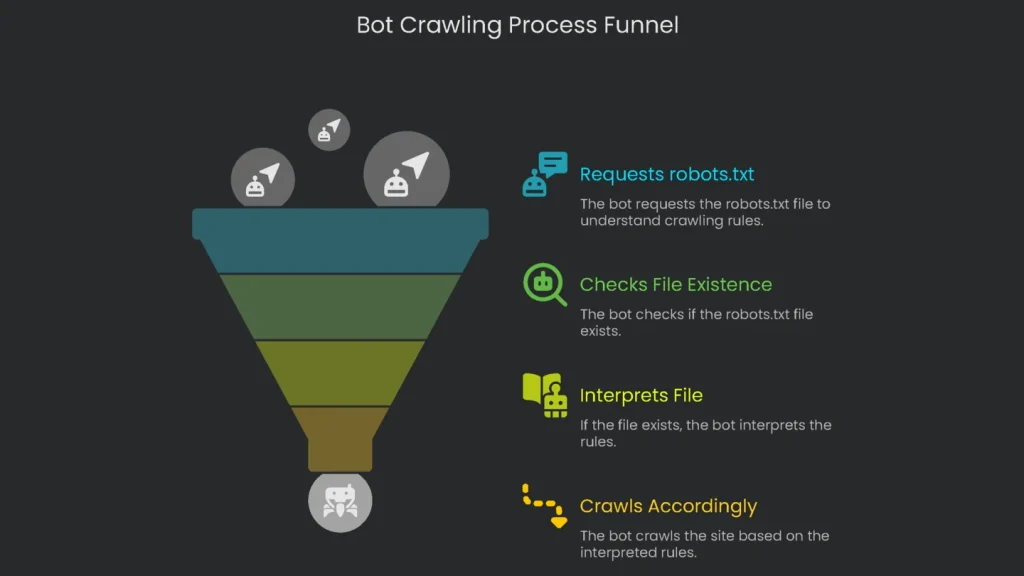
First stop: /robots.txt
When a bot like Googlebot lands on a new domain, the first thing it requests is /robots.txt. Think of it as a quick “What’s the etiquette here?” before it tours the site. If the file is readable, the bot learns which sections are a no-go and won’t touch those areas. If there’s no file—404 Not Found—polite crawlers treat it as a thumbs-up and move on. Consequently, this single step sets the entire crawl in motion.
Exact location and naming
The robots.txt file must live in one exact spot: the root of the website. You can’t drop it in a subfolder and expect bots to find it. It has to appear at the site’s first address, like a front door. For example, if your site is at [suspicious link removed], the file must be served at https://www.yourdomain.com/robots.txt. You can’t put it at https://www.yourdomain.com/main/robots.txt because crawlers only check the root path. Finally, the filename must be lowercase robots.txt, saved as plain text in UTF-8.
Subdomains are separate sites
Subdomains count as separate sites. As a result, each one needs its own robots.txt in its root. If you run [suspicious link removed], blog.yourdomain.com, and shop.yourdomain.com, the file on blog.yourdomain.com does not control shop.yourdomain.com. Therefore, keep rules local to each host.
For extra guidance, visit Google’s advice page on making a robots.txt. Next, let’s cover the core syntax.
Understanding the Core Syntax
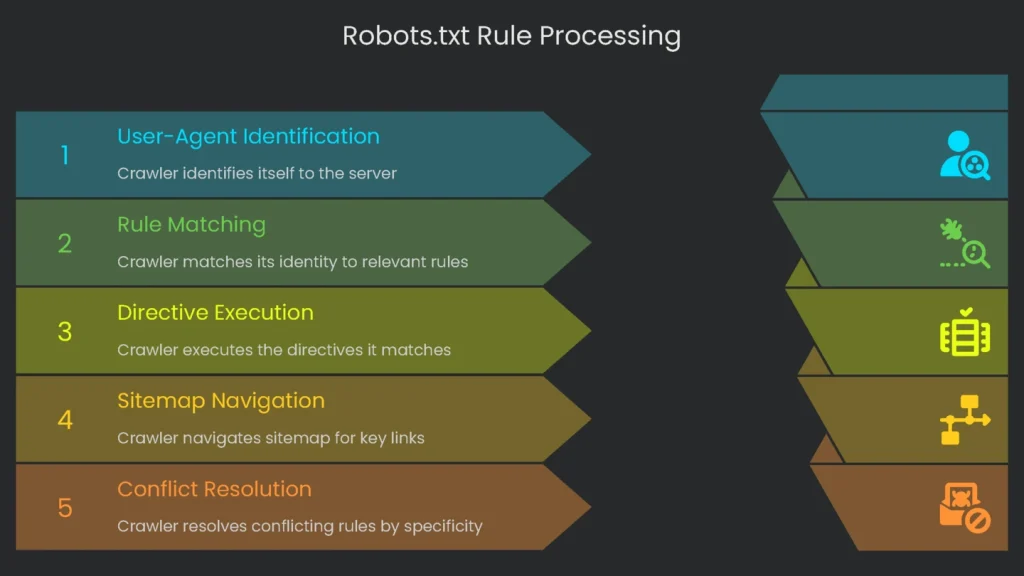
Even if robots.txt seems simple, its commands follow tight grammar rules. One small mistake can cause a crawler to skip an important line or misread an instruction. Therefore, learn the basics before you write the file.
Rules for Robots: Groups and Directives
A robots.txt file has one or more groups of rules, each aimed at one bot or at every bot. Every group has two parts:
- User-agent: tells which web robot the group targets.
- Directives: one or more rules (like Disallow or Allow) that tell the named bot what it can and cannot do.
Crawlers scan lines from top to bottom. Googlebot, for example, reads groups and follows the first one that matches. For people, you can add comments with the hash symbol (#). Anything after # is ignored by crawlers but helps teammates.
# This is a comment that no bot sees. [cite: 49]

User-agent: * # This section is for every bot on the internet. [cite: 50]

Disallow: /private/ # Only team members can see the private part. [cite: 51]
The User-agent Directive
The User-agent section always starts a group. It tells the crawler which instructions to follow. You can speak to every robot at once or address just one.
- All Crawlers: The wildcard asterisk (*) covers every bot.
User-agent: *
- Disallow: /temp/
- One Bot Only: Name the crawler to target it specifically.
User-agent: Googlebot
- Disallow: /for-google-only/
This way, you can allow major crawlers into one section while blocking a tool used only for SEO checks. There are many user-agent tokens, but a few matter most to site owners.
| User-Agent Token | Bot or Goal |
| * | All Robots |
| Googlebot | The bot Google uses for searching the whole web. |
| Bingbot | The bot Microsoft uses for Bing search. |
| Googlebot-Image | |
| AhrefsBot | This one collects data for Ahrefs, the tool webmasters use to check their site’s health. |
| SemrushBot | Like the last one, but collects data for Semrush instead. |
| GPTBot | OpenAI uses this to browse the web for training its models, including the one you just chatted with. |
| Google-Extended | Helps to gather the extra data needed for training Google’s models, like the newer Gemini system. |
Further reading: Need the whole list? Google has you covered on their site.
The Disallow Directive
This rule tells bots what to avoid. Directives start with “Disallow:” and point to a folder or page. Paths begin at the homepage and start with a slash (/). For example:
- Blocking a Directory: Use the folder name with a trailing slash.
# Blocks any request [cite: 80]

User-agent: * [cite: 81]

Disallow: /admin [cite: 82]
This tells every bot (because of the asterisk) to stay away from /admin/ and everything inside. It also blocks files like /admin/login.html and /admin/dashboard/.
- Blocking a Folder but Allowing One File: Disallow the folder, then Allow a specific file.
User-agent: * [cite: 86]

Disallow: /media/* # This stops all crawlers from the entire /media folder [cite: 87]

Allow: /media/file-to-keep.txt # Exception: let this file through [cite: 87, 88]
Notice how Allow creates the exception. If a whole folder is off-limits except one file, the crawler processes the rules and gives that file a green light. This pattern is handy when a folder is sensitive but one document—like a press release—must stay discoverable. Therefore, list the folder in Disallow, then add the Allow line. Finally, always double-check paths to avoid leaks from typos.
User-agent: Googlebot [cite: 96]

Disallow: /media/ [cite: 97]

Allow: /media/press-release.pdf [cite: 98]
This tells Googlebot that everything in /media/ is off-limits except press-release.pdf.
The Sitemap Directive
The Sitemap directive helps crawlers find key links quickly. Provide the full URL to your XML sitemap(s). You may list multiple sitemaps.
- Write the full web address for each sitemap.
- Add extra Sitemap: lines for different content types if needed.
Sitemap: https://www.yourdomain.com/post-sitemap.xml [cite: 105]

Sitemap: https://www.yourdomain.com/page-sitemap.xml [cite: 106]
Advanced Syntax: Wildcards
Big sites sometimes need stronger patterns. Google and Bing allow limited wildcards. For example:
- Asterisk (*): Matches any string. It’s useful for long, messy URLs that differ only by parameters.
- Parameters (?): To block URLs with query strings, target the question mark using patterns like
Disallow: /*?. Note: the # symbol starts a comment; it does not block URLs. - Dollar sign ($): Anchors the end of a URL. For example, blocking
/*.pdf$stops only URLs that end in.pdf, not folders that merely contain “pdf” in their names.
Therefore, use $ when you want to match file endings precisely and avoid unintended blocks.
Dealing with Conflicting Rules
When rules conflict, Google follows the most specific instruction. Specificity wins. Here’s a simplified example for https://example.com/page.htm:
- Allow: /page
- Disallow: /*.htm
The second rule is more specific because it targets the .htm extension. As a result, the Disallow applies. In short, path precision is king.
Smarter SEO Tricks Using robots.txt
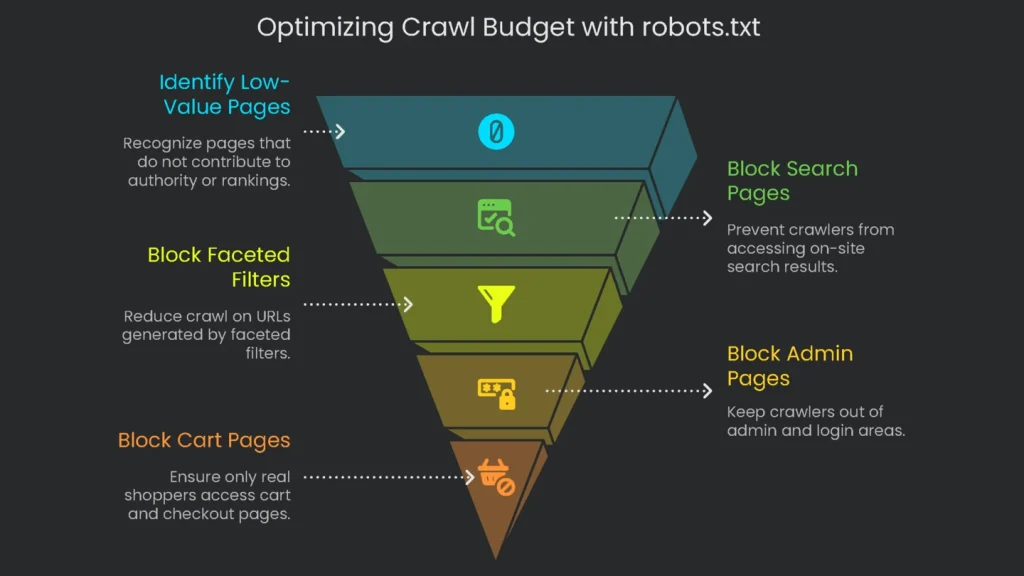
Used wisely, robots.txt does more than block or allow. It focuses crawl budget on the pages that matter most.
Keeping Google’s Budget in Mind
The crawl budget is the number of links Google will request in a given time. Thinking in budgets keeps crawlers focused on pages that build authority and rankings. This is crucial for large sites. Smaller sites usually glide along. However, a store with a million-plus pages must guard its budget.
When bots wade into seas of low-value or duplicate pages, they may delay important ones. As a result, new product pages and fresh guides can be indexed late. No index means no traffic, and no traffic means missed sales. Consequently, the Disallow rule acts like a traffic cop. It protects time and directs crawlers to high-value areas.
- Search Result Pages: On-site searches (e.g.,
/search?q=size-10-red) create thin, duplicate pages. Block them.- Robots.txt rule:
User-agent: * Disallow: /search/
- Robots.txt rule:
- Faceted Filters: Filters like color or size spawn countless near-duplicate URLs (e.g.,
/dresses?color=red&size=10). Therefore, reduce crawl on these where appropriate.
To catch messy parameter URLs quickly, block a broad pattern:
User-agent: * [cite: 152]

Disallow: /*? [cite: 153]
Next, keep crawlers out of admin and login pages intended only for staff.
User-agent: * [cite: 155]

Disallow: /admin/ [cite: 156]

Disallow: /login/ [cite: 157]
For WordPress sites, block /wp-admin/ as well.
User-agent: * [cite: 159]

Disallow: /wp-admin/ [cite: 160]
If you run a shop, keep bots from cart, checkout, and account pages. These should open only for real shoppers.
User-agent: * [cite: 163]

Disallow: /cart/ [cite: 164]

Disallow: /checkout/ [cite: 165]

Disallow: /my-account/ [cite: 166]
Sometimes blocking whole folders is fastest. For staging, block /staging/. For private assets, use a closed folder like /private/ or /internal-reports/. Then save robots.txt at the site root. Finally, you’re done.
- Temporary files or archives.
For example, to block a folder of internal reports:
User-agent: * [cite: 174]

Disallow: /internal-reports/ [cite: 175]
But remember: robots.txt is not security. Because this file is public, a Disallow can advertise sensitive paths. To keep data truly private, protect files with server-level authentication. Consequently, don’t rely on robots.txt to hide secrets.
Managing Crawling by AI Bots
Chatbots are everywhere. Knowing how to block them is useful, especially if you don’t want them training on your content. The easiest “no” is in robots.txt. OpenAI and Google have user-agent names for this purpose.
Stop OpenAI’s GPTBot and prevent content from reaching GPT:
User-agent: GPTBot [cite: 185]

Disallow: / [cite: 186]
Stop Google’s AI models like Gemini:
User-agent: Google-AI [cite: 188]

Disallow: / [cite: 189]
Adding these rules helps you regain some control. For the latest list of AI crawlers and instructions, see the search engines’ official documentation. Finally, let’s avoid common mistakes.
Critical Mistakes to Avoid
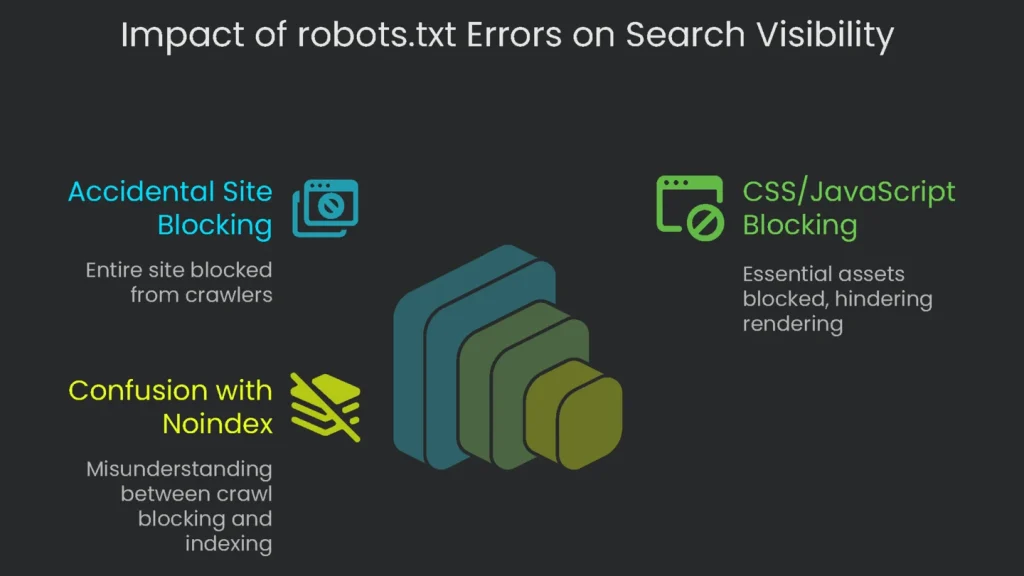
The robots.txt file is powerful. A single misplaced character can undermine it—and your search traffic. Therefore, watch for these common errors.
Blocking Your Whole Site by Accident
The most dangerous slip is shutting out every crawler from your entire site. Usually this happens after copying rules from a staging environment. The rule is short but severe:
User-agent: * [cite: 199]

Disallow: / [cite: 200]
That tiny block tells all search robots to avoid every URL. Within days, pages stop getting crawled, rankings fade, and organic visits drop to zero. Therefore, never deploy this on a live site.
Blocking CSS and JavaScript
Modern crawlers render pages like browsers do. They load CSS, execute JavaScript, and see the layout. If you block these assets, crawlers can’t paint the page and can’t understand it. Please don’t do this:
User-agent: *

Disallow: /js/

Disallow: /css/ [cite: 209]
Here’s why this hurts:
- A JavaScript menu stays hidden, so Google misses linked content and rankings suffer.
- On mobile, blocked CSS hides layout and tap targets, hurting your mobile-friendliness score.
- Crawl intelligence drops; Google can’t infer headers, footers, or responsive images.
Therefore, allow the CSS and JavaScript that build each page. As a result, crawlers can fully understand your content.
Mixing Up robots.txt and Noindex
People often confuse robots.txt Disallow with the noindex tag. One blocks crawling; the other removes pages from search results. They act at different stages. Consequently, swapping them leads to surprises.
- robots.txt Disallow: “Keep out.” The bot should not fetch the page.
- noindex Meta Tag: “Don’t show this in search.” The bot may fetch the page but must not index it.
A URL blocked in robots.txt can still appear in results if other sites link to it. Google may list it with a note like “No information is available for this page.” Therefore, if you truly want a page removed from search, allow crawling so the bot can see the noindex tag. To go deeper, see noindex vs. disallow. Here’s a quick comparison:
| Feature | robots.txt Disallow | noindex Meta Tag / X-Robots-Tag | |
| Main Job | Stops robots from crawling | Stops pages from being shown in search | |
| How it Works | Stored in a text file on the server | Added as an HTML meta tag or in the | HTTP header |
| Search Impact | Prevents visits, but a URL could still appear in search if linked from elsewhere | Guarantees the page never appears in search results | |
| Best Time to Use | When you don’t want bots wasting time on low-value or unlisted areas (e.g., staging) | When a page (e.g., a thank-you screen) must never show in results | |
| Typical Error | Trying to keep a page out of the index when only a crawl block is in place | Blocking a page in robots.txt that also has noindex, so crawlers never see the tag |
How to Test Your Robots.txt File
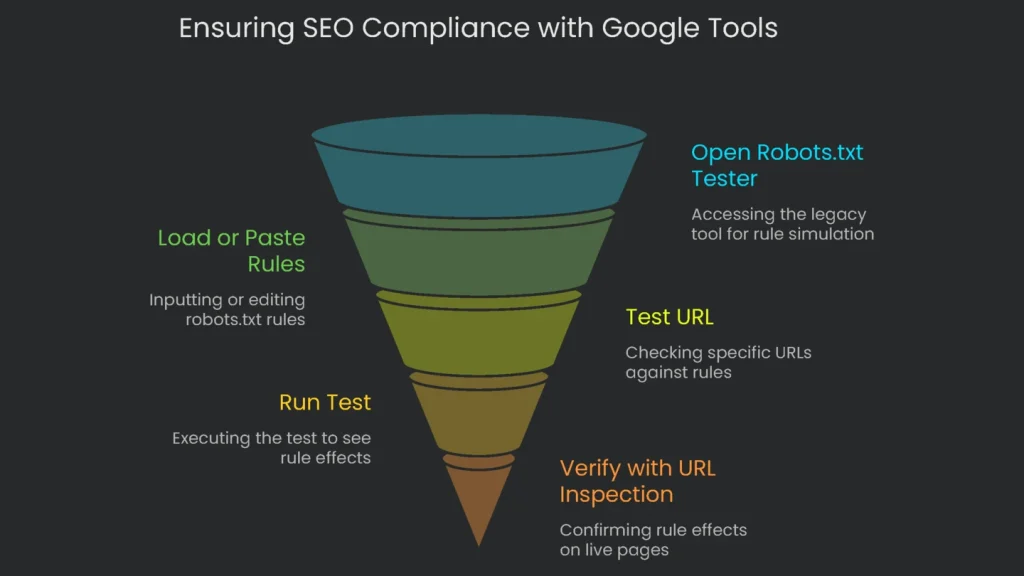
A small mistake can hurt SEO. Therefore, test the file before publishing and again afterward. Fortunately, Google offers helpful tools.
Simulating Rules with the Tester
Even though it lives in the legacy version of Google Search Console, the robots.txt Tester is still valuable. It shows how Googlebot reads your rules without going live.
- Open the Tool: Go to the robots.txt Tester in legacy tools.
- Load or Paste Your Rules: It fetches your live file. Edit in place or paste a new version. Syntax issues appear instantly.
- Test a URL: Enter any page on your site at the bottom.
- Pick a Bot: Choose the mobile or desktop Googlebot.
- Run the Test: Click “TEST.” You’ll see:
- ACCEPTED: No rule blocks the URL.
- BLOCKED: A rule blocks it; the tool underlines the exact line.
This is a safe way to validate tricky rules before deployment. As a result, errors drop.
Live Checks with URL Inspection
Inspection in Search Console shows how Google sees a live page, including robots.txt effects.
- Key in a URL: Enter the full address at the top of Search Console.
- Check Index Coverage: See whether Google has indexed it.
- Open “Crawling”: Expand the section for details.
- Look for “Crawl allowed?” If it says “No” and cites robots.txt, your rule is working.
Create the rule in the Tester, then verify with URL Inspection. Consequently, you get a two-part safety check.
Final Tip: Use robots.txt with Reason
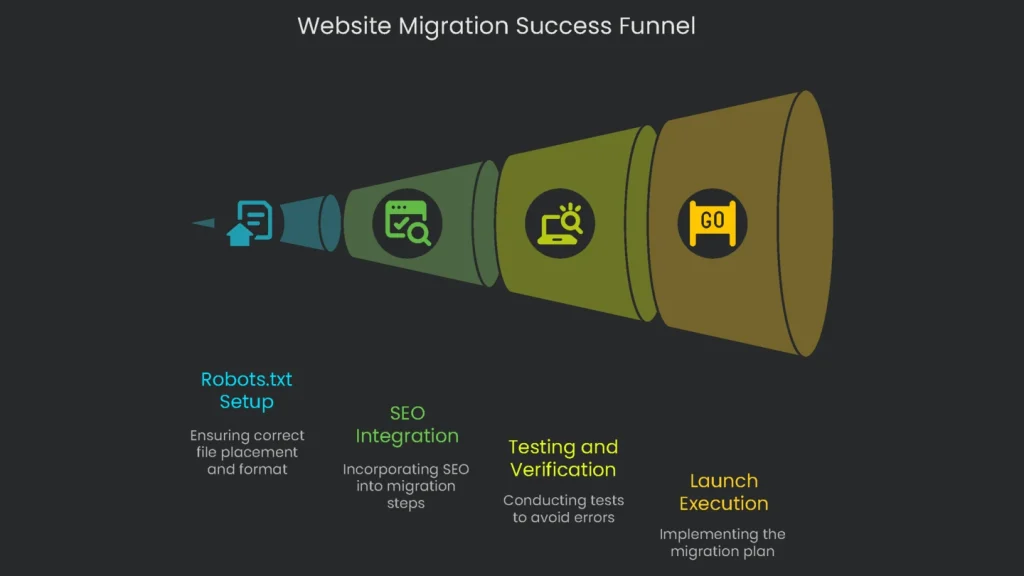
A few lines of plain text can steer powerful bots, refine discovery, and safeguard your material. Handled well, robots.txt advances your Search Engine Optimization. Mishandled, it can make a site disappear. Therefore, remember: robots.txt manages crawling only. It does not secure content or remove it from search. A noindex tag controls indexing. Get the two straight, and robots.txt stays a strong ally.
Pre-launch Checklist
Before you launch or update robots.txt, run these must-do checks to avoid common slip-ups:
- File in the Right Place? The file must be named robots.txt and sit in the site’s root folder.
- Good File Format? Save it in UTF-8 so it reads correctly.
- No Unintended Block? Ensure there isn’t a blanket
Disallow: /that forbids the whole site. - Critical Style and Script Access? Allow crawlers to fetch required CSS and JavaScript.
- Correct Control Method? Use robots.txt for crawling control and a noindex tag to remove pages from search.
- Sitemap Listed? Include the full URL to your XML sitemap.
- Rules Verified? Test with Google’s robots.txt Tester before going live.
Implementation steps
- Find the /robots.txt file in the root and check the current directives for accuracy.
- Unblock any vital assets like JavaScript, CSS, or images that are required for complete page rendering.
- Specify Disallow directives for infinite spaces or private URLs, but do not use these to block content intended for indexing.
- Direct crawlers to the sitemap’s location; set a crawl-delay only if the server performance absolutely demands it.
- Test rules using a crawling tool, and validate changes with a small crawl both before and after rules are applied
Frequently Asked Questions
What can robots.txt decide?
It steers crawlers on where to go and saves a little bandwidth—nothing else.
Can it erase pages from Google?
Nope—add noindex or hit with 404/410 to take a page out.
Should I block CSS and JavaScript?
Don’t do it—Google needs those to see the page like a user does.
Where can I find it?
Park it in the main folder: /robots.txt.
How can I test my robots.txt?
Use a Robots Testing tool or run a small crawl to check the results.