
This checklist covers preconnects and critical CSS to JS deferral and image CDNs to deliver quick wins you can achieve today that will improve your Core Web Vitals.
Every Moment Matters
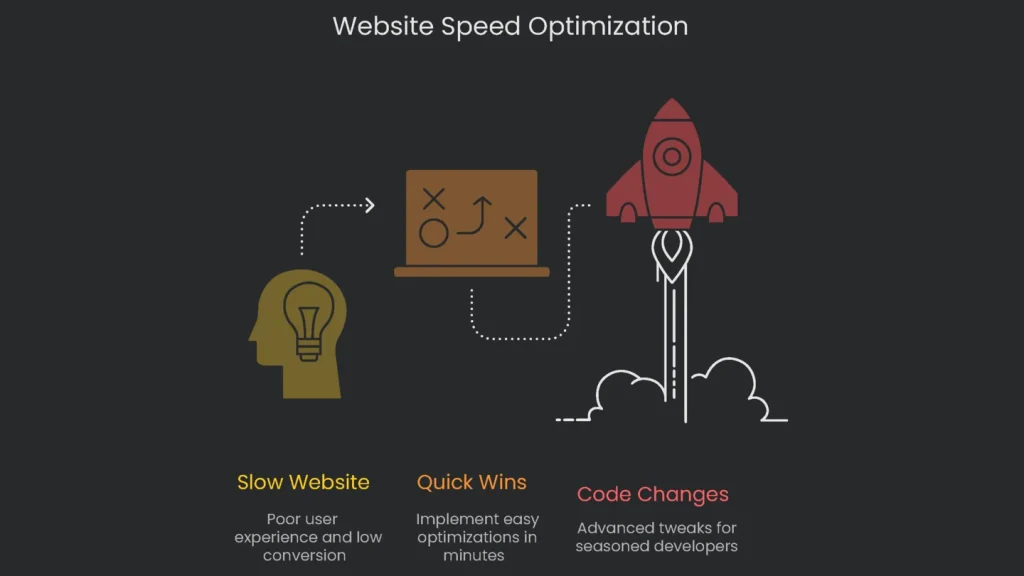
In the online marketplace, fast wins the prize. That may feel over-said. However, numbers remind us why it’s true. If a business-to-business site wraps in 1 second, it converts three times more visitors than a site waiting 5 seconds, and five times more than one dragging for 10 seconds. Consequently, those steps off the ledge add up.
Speed hits the human brain almost instantly. That cliff appears in the first tick of a timer. Google’s look inside users’ minds shows the leap: cutting load from 1 second to 3 bumps the bounce rate—people zipping away—up 32%. On phones, the cliff is steeper: 53% of visitors walk the moment load hits 3. For each extra second, happiness drops 16%. As a result, one slow load can tarnish the brand and shrink repeat visits.
That’s why speeding up your website is one of the smartest choices any business can make online. It isn’t only for the tech team. Instead, it shapes how visitors feel, how search engines see you, and how money flows into your business. In short, a quicker site grabs more visitors, climbs higher, and sells more.
This guide lays out 15 straightforward tips. It starts with quick wins you can do in 10 minutes and ends with code changes seasoned developers love. Follow the steps and recover money you almost lost. Consequently, every click will feel easier starting today.
Smart Steps for Newbies
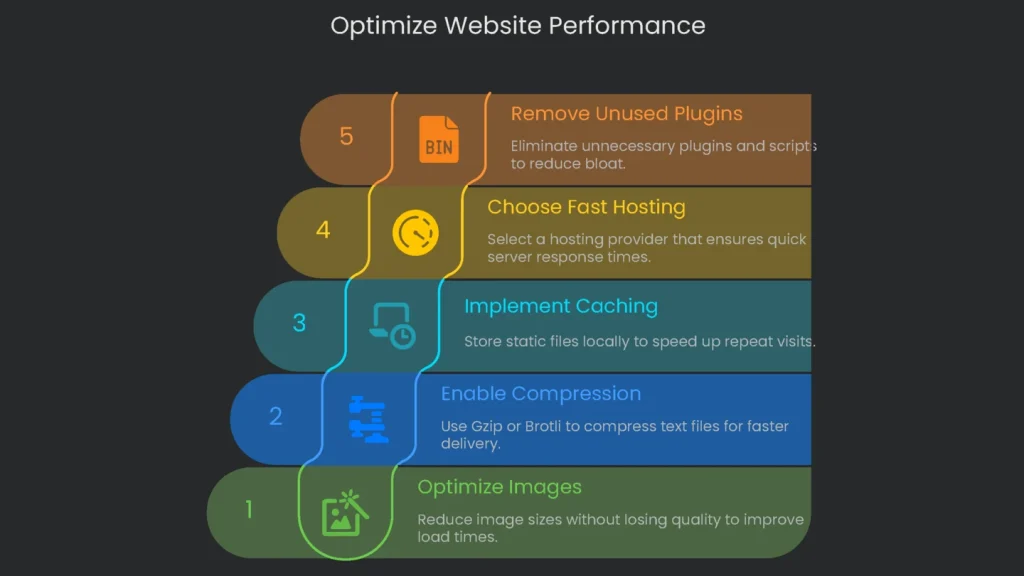
Shape Up Your Photos
Most pages carry photos that weigh the most. Therefore, they are the main reason pages load slowly. Fix that first for the fastest win. You squeeze files so they load quickly, yet the picture still looks great. As a result, the page feels smooth, search engines understand you better, and readers stick around.
How to Get It Done
- Resize and Shrink First: Don’t upload a 4000-pixel-wide image if it shows at 800 pixels. Resize to 800 in your editor, then compress the file to cut size without hurting the look. Use a reputable compressor for the final pass.
TinyPNG works online anytime. Or download apps like ImageOptim. Using WordPress? Try Imagify or ShortPixel. Once set, they compress new uploads automatically.
- Pick the Right Modern Format: Choose modern formats to shrink files. For example, WebP and AVIF often beat JPEG and PNG.
WebP and AVIF can cut size by 25% to 50% with no visible loss. Consequently, pages load faster and look sharp.
Wrap images in the HTML <picture> tag. Therefore, new browsers see WebP or AVIF, while older ones fall back to JPEG or PNG.
- Boost SEO and Accessibility: Renaming files with clear, keyword-rich names helps. Every image must also include descriptive alt text.
Use proper alt text. It supports screen readers and helps search engines connect images to your page. Consequently, images can rank better.
| Format | Best For | Key Features | File Size |
| JPEG | Photos with lots of colors | Smaller version without detail loss; no see-through areas. | Tiny |
| PNG | Logos, icons; transparent bits | Keeps everything perfect; supports transparency. | Bigger |
| WebP | Swap for either JPEG or PNG | Combines JPEG and PNG perks; even smaller at similar quality. | Smaller |
| AVIF | Images where every byte counts | Newer format; excellent quality with less data. | Tiniest |
Turn on Gzip or Brotli Compression
These tools reduce text files—like HTML, CSS, and JS—before your server sends them. It’s like stuffing a letter into a mini envelope that the browser opens later. Expect a 70% to 90% size drop. Therefore, pages load faster. Check your host’s guide or a Vultr page for steps if needed.
How to Turn It On
Most web hosts enable this by default. However, a quick check can’t hurt. Use a free online test to see if pages are still full size. If they are, activate compression yourself.
- For Apache: Add rules to
.htaccessto compress text with mod_deflate. For example:
Apache
AddOutputFilterByType DEFLATE text/plain
AddOutputFilterByType DEFLATE text/html
AddOutputFilterByType DEFLATE text/xml
AddOutputFilterByType DEFLATE text/css
AddOutputFilterByType DEFLATE application/xml
AddOutputFilterByType DEFLATE application/xhtml+xml
AddOutputFilterByType DEFLATE application/rss+xml
AddOutputFilterByType DEFLATE application/javascript
AddOutputFilterByType DEFLATE application/x-javascript
- For NGINX Servers: Add settings to
nginx.confto enable Gzip, set compression strength, and list file types.
Nginx
gzip on;
gzip_disable "msie6";
gzip_vary on;
gzip_proxied any;
gzip_comp_level 6;
gzip_buffers 16 8k;
gzip_http_version 1.1;
gzip_types text/plain text/css application/json application/javascript text/xml application/xml application/xml+rss;
- For WordPress Users: WP Rocket and WP-Optimize can enable Gzip or write the rules to
.htaccessautomatically.
Use Browser Caching
Browser caching saves static files—logos, CSS, and JavaScript—on the visitor’s device. Therefore, later page views load them from local memory. As a result, load times drop and your server breathes easier.
How to Put Caching into Action
To get the most from browser caching, send the right headers. The key ones are Expires and Cache-Control.
These headers tell browsers how long to keep files. Consequently, return visits feel instant.
- For Apache Servers: Edit
.htaccessto set mod_expires rules.
Apache
ExpiresActive On
ExpiresByType image/jpg "access plus 1 year"
ExpiresByType image/jpeg "access plus 1 year"
ExpiresByType image/png "access plus 1 year"
ExpiresByType image/gif "access plus 1 year"
ExpiresByType image/webp "access plus 1 year"
ExpiresByType text/css "access plus 1 month"
ExpiresByType application/javascript "access plus 1 month"
- For Nginx Servers: Add a
locationblock with anexpiresrule and a public cache header.
Nginx
location ~* \.(css|js|ico|gif|jpeg|jpg|webp|png|svg|eot|otf|woff|woff2)$ {
    expires 1y;
    add_header Cache-Control "public";
}
- For WordPress Users: Several caching plugins can enable browser caching for you.
Pick a Fast Hosting Company
No amount of tweaking can fix a slow server. Think of your host as the building your site lives in. If the building crumbles, the view inside doesn’t matter. Therefore, watch your Time to First Byte (TTFB). If it’s high, your host is slowing responses.
How to Do It
- Skip the Super-Cheap Shared Plan: These cram hundreds of sites on one server. When a neighbor gets busy, your site waits. Consequently, visitors see delays.
- Spend a Bit on Better Gear: Managed WordPress, a VPS, or cloud hosting gives you room to breathe. Typically, you get SSDs and reserved resources.
Check Your TTFB: Use GTmetrix or WebPageTest. Aim for under 400 ms. If it’s higher, hosting is likely the weak link.
Cut Out Old Plugins and Scripts
Websites—especially WordPress ones—collect junk. Think trials you never removed, old tracking codes, and theme features you never used. Even “inactive” items can add code, CSS, or slow database queries. Therefore, it’s time for a digital spring cleaning.
Getting Started
- Do a Full Inventory: For each add-on ask, “Why is this here?” and “Does it serve the main goal?”
- Turn it Off, Test, and Toss: Disable non-essentials and test. If nothing breaks, delete them. Consequently, you cut risk and reduce bloat.
- Erase Old Code: Check the HTML source or your tag manager for stale tracking tags. Common culprits are outdated analytics, testing, or ad scripts. Remove what you no longer use.
The Next Steps
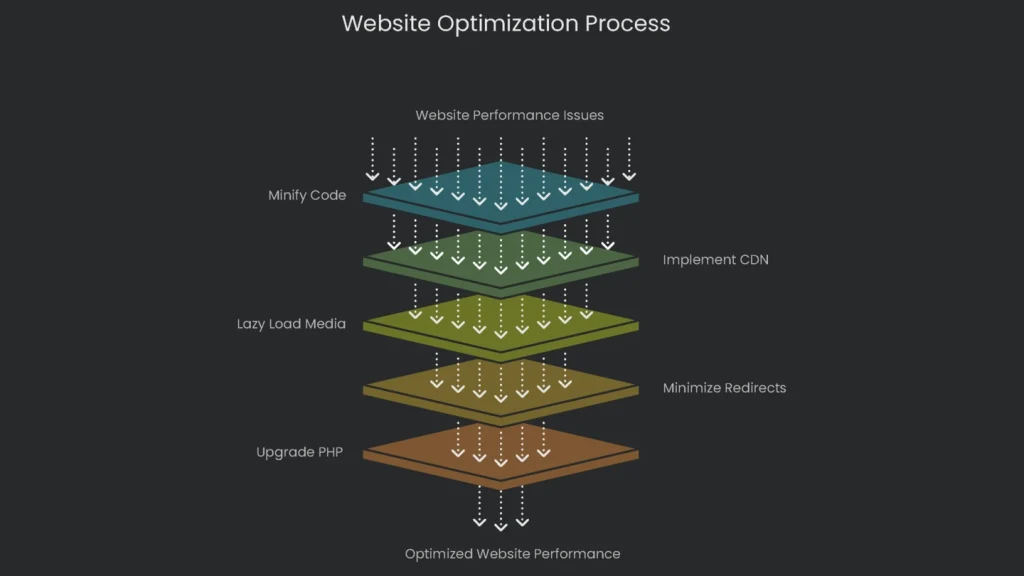
Shrink CSS, JavaScript, and HTML
Minification trims comments, spaces, and blank lines. Browsers don’t need them. Therefore, files get smaller and arrive faster.
How to Do It
- Online Services: For one-off jobs, use a quick tool.
Toptal’s Minifier or MinifyCode.org let you paste code and download the compact version in seconds.
- WordPress Add-Ons: Most popular caching and optimization plugins include CSS and JS minification. Usually, it’s a single toggle.
- Batch Minification in Workflows: Use build tools to automate it.
Set up Webpack, Gulp, or Grunt to pack CSS, JS, and even HTML before deploy. Consequently, your server serves the leanest code.
Call in the Content Delivery Network (CDN)
Imagine delivery friends living in cities around the world. That’s a CDN. Edge servers keep copies of images, CSS, and JS. Therefore, visitors get files from the closest city. As a result, global loads feel local.
How to Set It Up
- Choose Your CDN Buddy: Pick based on budget and scale.
Cloudflare is a freemium favorite for small to mid-size sites. For large sites, consider AWS CloudFront, Fastly, or Akamai.
- Do the Easy Setup: With a service like Cloudflare, sign up, add your domain, and point nameservers to the CDN. Consequently, traffic routes through the network and caches your content.
- Grab the Extra Perks: CDNs absorb bad traffic, reduce crashes during surges, and can cut bandwidth costs. Therefore, you boost speed and resilience together.
Let Media Load Only When You Scroll Down
By default, browsers fetch every image, video, and iframe on a page. However, media below the fold delays first paint. Lazy loading waits to load off-screen media until you scroll. Consequently, the initial view appears faster.
How to Set It Up
- Native Lazy Loading: Use the built-in attribute most browsers support:
loading="lazy"on<img>and<iframe>.
- JavaScript Options: On older browsers, use a lightweight script like vanilla-lazyload. Set the real URL in
data-src, and let the script copy it tosrcwhen the image nears view.
- WordPress Lazy Load: Performance plugins such as WP Rocket or WP-Optimize, plus many image tools, can toggle lazy loading for you. Therefore, you get speed gains with one click.
Minimize Redirects
An HTTP redirect sends a browser from one URL to another. Some are necessary, like moving from HTTP to HTTPS or enforcing a single host. However, each redirect adds a round trip. Chains make it worse.
- Check for Chains: Use a redirect tester or a site audit tool to find chains. Then fix them so the first redirect points straight to the final URL.
Update Internal Links: Replace old HTTP links in posts and footers with HTTPS. Consequently, visitors go straight to the right address with no detours.
Adopt Responsive Design: Avoid separate mobile URLs like m.example.com. Otherwise, device redirects add delay. One URL that adapts is faster and friendlier to SEO.
Upgrade to a Modern PHP Version
PHP powers most websites, including WordPress. Newer versions use fewer resources, load pages faster, and improve security. Therefore, moving from PHP 5.x or early 7.x to PHP 8.x can feel like new servers without the hardware bill.
How to Get Hooked Up
- Quick Version Check: Many control panels show the version on the main screen. In WordPress, go to Tools > Site Health > Info > Server.
- Check Theme and Plugin Compatibility: Ensure active items support the new version. If a plugin is abandoned, replace it.
- Use Your Host’s Version Manager: Most dashboards include a “PHP Version Manager.” Pick the new version and apply. You’ll also find step-by-step instructions from big hosts.
- Keep Your Site Safe and Fast: Unsupported versions miss security fixes. Upgrading adds protection and performance together.
Advanced Strategies
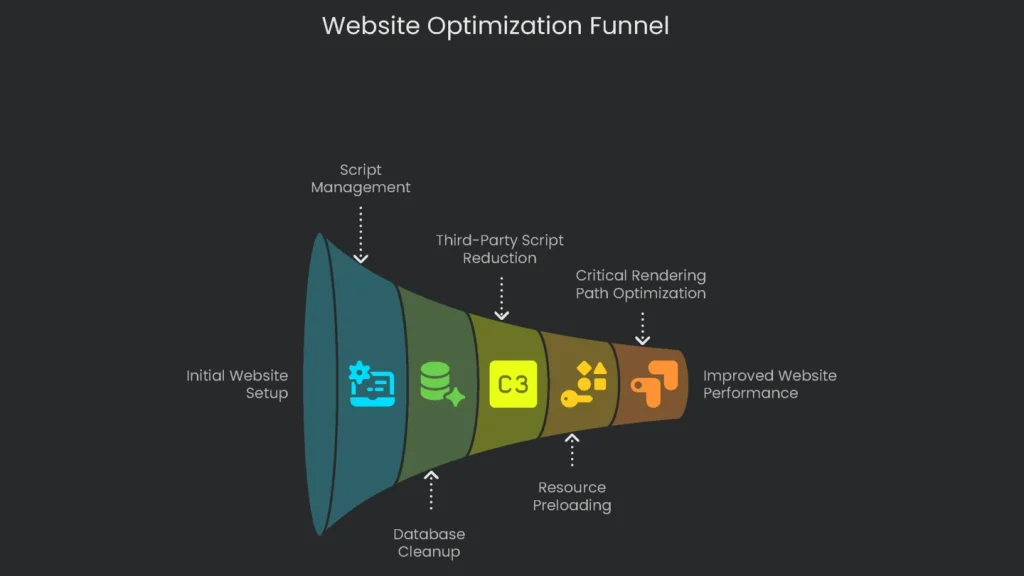
Don’t Let Scripts Freeze Your Page
By default, when a browser sees a <script>, it pauses parsing to download and run it. Therefore, the page can stall before it renders.
- Use async (For Independent Scripts):
asyncdownloads in the background and executes as soon as it’s ready. Order is not guaranteed. Consequently, use it for independent third-party scripts like analytics and ads. - Use
defer(For Dependent Scripts):deferdownloads in the background and waits to run until after the HTML is parsed. Therefore, it’s best for most site scripts.
| Attribute | HTML Parsing | Script Execution | Order Guaranteed? | Best For… |
| None (Default) | Blocked while the script downloads and runs. | Starts immediately. | Yes | Rare cases where early execution is critical. |
| async | Continues while downloading. | Executes immediately; parsing pauses. | No | Independent, third-party scripts. |
| defer | Continues while downloading. | Runs after DOM is parsed. | Yes | Most site JavaScript. |
Clean Up Your Database
If you use a CMS like WordPress, your database holds posts, settings, and more. Over time it fills with junk: drafts, spam comments, expired transients, and leftovers from old plugins. Consequently, queries slow down and TTFB rises.
How to Fix It
- Choose a Plugin for Cleanup: Manual edits via phpMyAdmin are risky. Let a plugin handle it.
- Recommended WordPress Options:
- WP-Optimize: This all-in-one tool clears drafts, trash, spam, expired images, and optimizes tables. For setup, follow the quick setups.
- Advanced Database Cleaner: It finds “orphaned” tables and options left by removed plugins and cleans them.
- Schedule Automatic Cleanups: Set weekly or monthly jobs so the database stays lean.
- Always Backup First: Make a full backup before optimizing. Therefore, you can roll back if needed.
Trim Down Third-Party Scripts
Third-party JavaScript comes from domains you don’t control. It powers analytics, ads, tests, chat, and social buttons. However, it’s often the biggest speed drain. You can’t optimize it deeply, and it may block the main thread.
Treat new third-party code like a business decision. Set a “performance budget” with hard limits. A one-second loss can cut conversions by 7%. Consequently, weigh each script’s gain against its cost.
How to Put This Into Action
- Measure First: Use WebPageTest and check “Content Breakdown by Domain.” See how many external requests you make and their cost.
- Cut What Doesn’t Pay Off: Ask, “Does this script’s gain beat the visitors we’ll lose waiting for it?” Often, the answer is no.
- Postpone What Can Wait: For must-keep scripts, delay them. Use a tool like Perfmatters or WP Rocket to load on interaction. Consequently, core content renders first.
Preload Key Resources
Browsers discover some heavy files late. For example, custom fonts appear only after CSS loads. That creates a queue. The <link rel="preload"> tag promotes important files early so they’re ready when needed.
How to Implement
- Spot Late Resources: Use the waterfall in WebPageTest or GTmetrix. Common candidates are font files, the Largest Contentful Paint (LCP) image, and a critical JS file that loads another script.
- Add the Preload Tag in
<head>: Include the file’shrefand anasvalue for its type. If the file is cross-origin, addcrossoriginas well.
- Keep Preload in Check: Only preload what’s truly critical. Otherwise, you can slow the page by crowding the queue.
Speed Up the Getting-Ready Path
The browser assembles HTML, CSS, and JavaScript in a backstage flow called the Critical Rendering Path (CRP). Tuning it is a pro-level win. The goal is to paint what’s visible first.
How to Get It Done (The Nuts and Bolts)
- Zip Up Render-Blocking Stuff: Reduce CSS and JS that block first paint. See our guide on minifying CSS and JavaScript for tactics.
- Inline Critical CSS: Extract only the CSS needed for above-the-fold content and place it in a
<style>block in the<head>. Therefore, the top of the page appears immediately. - Load Non-Critical CSS Asynchronously: Fetch the rest without blocking render. One trick is a
<link>that loads as print and then switches to all when ready. - Defer All Possible JavaScript: Add
deferto scripts not needed for the first view. Consequently, HTML parsing and rendering finish sooner. - Automate to Save Time: Tools like NitroPack or WP Rocket can generate critical CSS automatically. For deeper learning, see the CRP tutorial.
Wrap-Up: Speed is a Journey Across Time
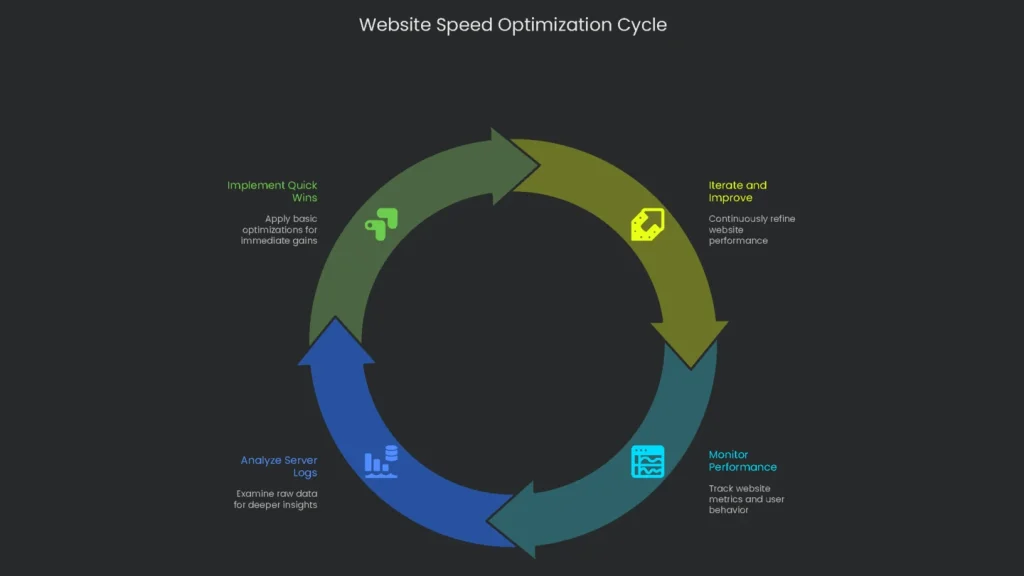
Speed isn’t a one-time patch; it’s ongoing maintenance. Websites change. Devices change. Expectations rise. Therefore, start with the Quick Wins: compress images, enable Gzip, and turn on browser caching. These three often restore seconds without new plugins or custom code. Finally, keep iterating. Each tweak improves UX, pleases search engines, and helps the bottom line.
If your site is underperforming or you’re ready to crank things up, the pros at Technicalseoservice can help. We eat, sleep, and breathe web speed. Reach out for a full audit, and watch your site turn into a revenue-generating powerhouse.
Implementation steps
- Set targets for LCP, INP, and CLS based on the actual data you’ve already collected.
- Optimize the main hero image and fonts; inline only the CSS you need to paint first and defer everything else.
- Remove any script that blocks first paint; swap or defer third-party embeds that hold everything else up.
- Tap into your CDN and cache pages as long as possible to shrink that first byte you send across the wire.
- Build a dashboard that shows every performance change linked to the release you just shipped
Frequently Asked Questions
What task should I tackle first?
Start with the biggest slowdown—heavy images, blocking CSS/JS, and high TTFB.
Are preconnect and prefetch worth the effort?
They are—preconnect speeds up key origins and prefetch warms up the next page.
How should I handle third-party scripts?
Audit them, load the important ones last, or drop the ones that don’t deliver.
Is critical CSS a good move?
Definitely—inline the critical portion and defer the rest for a later load.
How do I check if I’m improving?
Track field CWV metrics and check the deployment dashboard with every new release.