
If a page has no internal hyperlinks, it is hidden from users and bots. Here is how to surface or retire orphans using internal crawl data, analytics, and internal linking updates.
Picture your website like a giant castle. Some little rooms are created and locked away behind heavy doors that nobody has keys for.
These secret rooms are your orphan pages. They sit quietly on your site, waiting for someone to notice. However, there are no hallways or staircases leading to them. A visitor or a search engine like Google can’t pass through other pages to discover them, so they stay empty and forgotten. In short, an orphaned page is a tiny, lonely island cut off from any nearby land.
To separate them from similar types, think of the dead-end page. An orphan page has zero links pointing to it, so no one can find it. A dead-end page has incoming links but no outgoing ones. Therefore, the journey stops, but the page gets found just fine.
What is Orphan Pages
Imagine a little raft floating from island to island. Now picture a cyclone of orphan pages. The raft heads toward nowhere on purpose. When it reaches the cyclone, it becomes part of it. Consequently, it can’t find the mainland or a way back. If a bunch of pages link only to each other and are cut off from the main site, every one of them becomes an orphan.
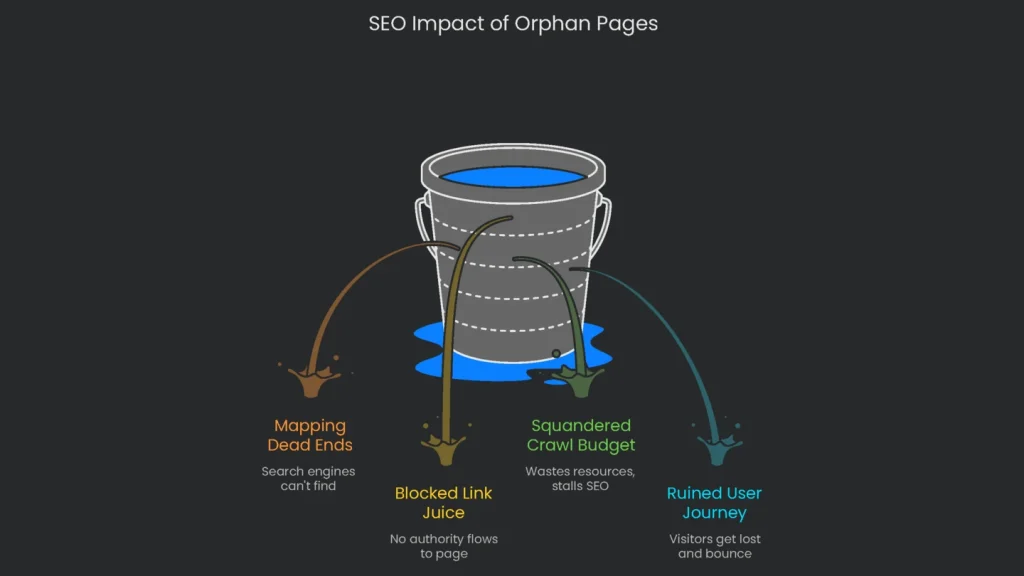
Orphan pages aren’t merely annoying; they can sink your SEO ship. When these pages float alone, they mess with crawl planning, steal page influence, gobble server bang, and leave users feeling lost and frustrated. As a result, performance drops across the board.
Mapmakers Hate Dead Ends
Why Links Matter
To map the endless web, search engines lean on links. They follow trails from page to page, building their big picture step by step. However, orphan pages sit alone, with no breadcrumbs pointing in or out. Sure, they might trot in via an XML sitemap or an outside blog, yet that’s a shaky lifeline. According to Google, a page lacking links gets lower attention. Consequently, the robots visit, but rarely on repeat trips.
They Block Link Juice
How Authority Flows
Think of internal links as corridors that let authority—also called PageRank—flow from your best pages to the rest of your site. Every link is like a small “thumbs-up,” pushing a bit of authority to the page it connects to. However, an orphan page doesn’t have any of these links pointing to it, so it gets zero authority from the rest of the site. When Google sees no connections, it assumes the page is unimportant. Even if the content is fantastic, the page is left out of the ranking party and can’t compete for tough keywords.
They Squander Crawl Budget
Index Bloat Risks
On big sites, search engines have a limit called “crawl budget”—the number of pages they will scan in a given time. When there are many irrelevant orphan pages—like expired promotions or out-of-stock items—your site can suffer from “index bloat.” If Google runs into these pages, it might waste valuable crawl budget while skipping fresh, essential content. Consequently, forgotten orphan pages can greedily use up crawl resources and stall your SEO progress.
Lost Pages Ruin the User Journey
Bounce and Brand Impact
Think of an orphan page as a dead end for your visitors. There’s no road sign to lead them here from anywhere else on your site; they arrive only from a search result or an old link. When they land on it, they usually don’t know what to do next. If they see no related articles or only an awkward homepage link, they might bounce. Therefore, your site can feel unfinished.
If that sticky situation gets worse because the page is old, the page may accidentally misinform a user and your brand will look careless. Having many lonely, ignored pages also sets off alarms on crawlers. If they see a cluttered, messy corner of your site, they may view the whole site as low-quality and push your pages down the results. Plus, those unnamed orphans can pop up for the same terms as your best, brand-new articles. This is called keyword cannibalization, and it makes Google unsure of what to trust, stealing your nice rankings.
Your Map to Discover and Fix Lost Pages
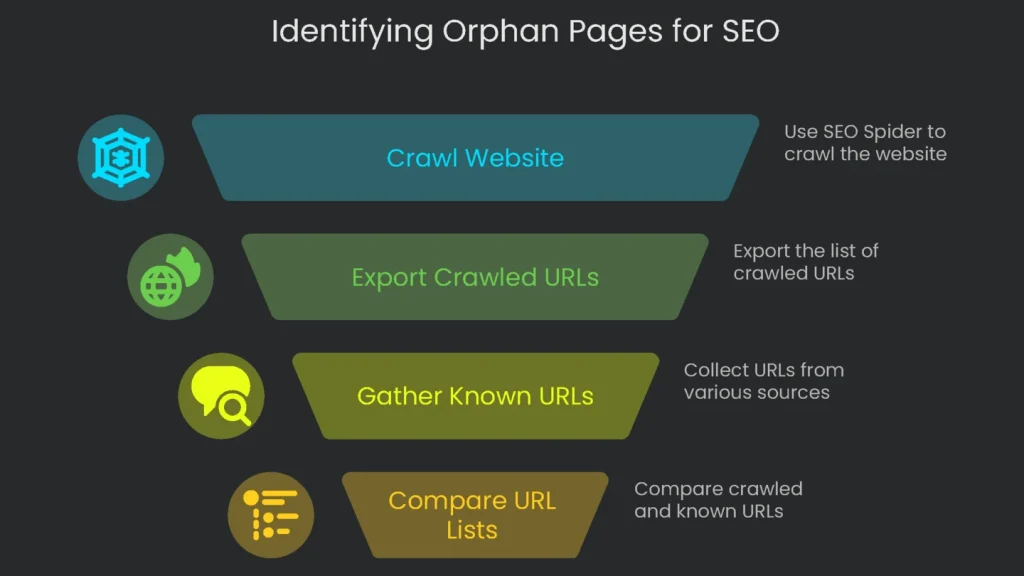
Locate, fix, repeat. This straightforward technique will have search engines and readers saying, “Nice place, I’ll stick around.” First, gather the different lists of your website’s URLs. Next, rank them using industry-standard tools and fill in the blanks. The following instructions help any SEO expert draw the same tidy path.
Gather All Your URLs
Two Lists to Compare
To spot those sneaky orphan pages, compare two URL lists. The first shows every page a search engine bot could reach by clicking around your site. The second is a complete inventory, compiled from multiple sources, of URLs you already know. As a result, the pages on the complete list that are missing from the crawled set are the orphan survivors you’re looking for.
Source A: Crawled URLs
This batch shows pages your site navigation actually lets guests reach.
- Tool: Grab a license for the free version of SEO Spider.
- How to Use: Fire a crawl straight from the homepage of your site, like https://technicalseoservice.com. Make sure the settings tell the tool to obey robots.txt rules and to load only the indexable pages. This makes the crawl act like a real search engine.
- Action: When the spider completes the crawl, hit the “Export Internal” option to snag a copy of all the HTML URLs. Consequently, this becomes your tidy list of properly linked pages.
Source B: All Known URLs
Now assemble a mega master sheet by raiding multiple sources for URL intel. The sheet shows everything from folder pages to old PDFs. Therefore, you’ll know what’s out there—even the paths that don’t show on your navigation.
- 1. Google Analytics 4 (GA4):
- Why it’s handy: GA4 tells you every page that’s ever had visitors, no matter how users got there. For example, this is how to spot orphan pages that still attract traffic from old bookmarks or forgotten links.
- How to grab the list: Head to GA4 and click Reports > Engagement > Pages and screens. Switch to the “Page location” dimension to see the full URL. Next, set the date as far back as possible. If the site is big, you might hit limits and need to follow the instructions in the GA export link or pull the data via BigQuery.
- 2. Google Search Console (GSC):
- Why it’s valuable: GSC shows every URL Google knows about, even the hidden ones. Consequently, it’s perfect to spot pages the crawler found via dead old links.
- How to get the data: Open the “Pages” report from the “Indexing” sidebar. Filter for “Indexed” only and export. GSC limits you to 1,000 rows in the web interface. Bigger sites can use the GSC add-on or the API for a full dump.
- 3. XML Sitemap(s):
- Why it’s useful: Picture your XML sitemap as a treasure map for search engines. It shows all the key URLs they need to visit. If pages on this map aren’t turning up during actual crawls, they’re orphans nobody knows about.
- How to get the list: Most sites store the sitemap at domain.com/sitemap.xml. You might also find a link in the robots.txt file. Grab the file, then pull the list of all URLs it contains.
Find Orphans with Screaming Frog
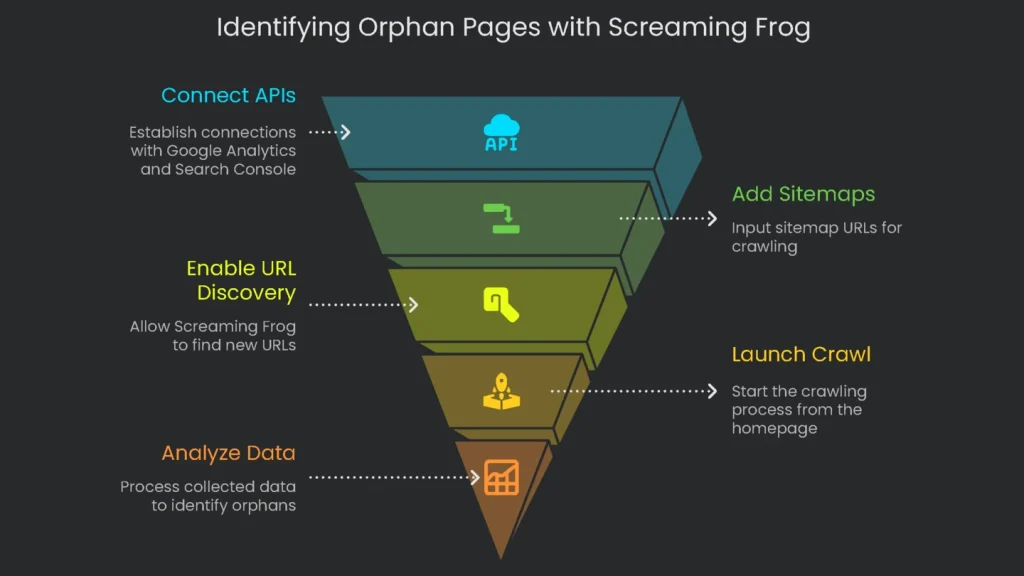
Screaming Frog’s SEO Spider makes finding orphans a breeze by automating the comparison part. However, you’ll need the paid version to access this.
Configure Screaming Frog
Setting the tool up correctly is key for a useful audit, so complete these steps before clicking “crawl.”
- Connect APIs: Head to Configuration > API Access. Connect to the Google Analytics API and the Google Search Console API by following this guide.
- Add Sitemaps: Navigate to Configuration > Spider > Crawl. Check the “Crawl These Sitemaps” box and insert the URL of your sitemap or sitemaps.
- Help Screaming Frog Find New URLs: This step is the big one. In the settings for both Google Analytics and Google Search Console, find the “General” tab and tick the box that says, “Crawl New URLs Discovered…” As a result, you give the little robot permission to hunt for lost pages. When it finds them, it collects key info—like whether they’re working and what they’re called—that we need to tidy them up.
Launch the Crawl and Wrap Up the Analysis
Kick off the crawl from your main homepage. Wait until the progress bar says 100%, and then head to the Crawl Analysis menu and hit Start. Consequently, this runs the final checks, matching up all the data to unmask the pages that nobody links to.
Spot the Orphans
Once the analysis wraps up, you can find the orphan pages in a couple of easy spots:
- Main Report: Go to the Reports tab, then click Orphan Pages. This hands you a tidy spreadsheet that lists all URLs missing links, pulled from all the data sources the tool scanned.
- Interface Tabs: You can view orphan pages in the tool by using the filters in these tabs:
- Sitemaps tab > Orphan URLs filter
- Analytics tab > Orphan URLs filter
- Search Console tab > Orphan URLs filter
- Crawl Depth Filter: On the main Internal tab, click the “Crawl Depth” column to order by depth. If a URL has no crawl depth, it’s an orphan URL—no links led to it from the home page.
Review the patterns in the orphan page list, and you may spot larger problems. For example, a damaged template or a faulty process to remove outdated campaign pages could create a series of orphans. Fixing the main issue stops new orphans from popping up.
How to Fix Orphan Pages
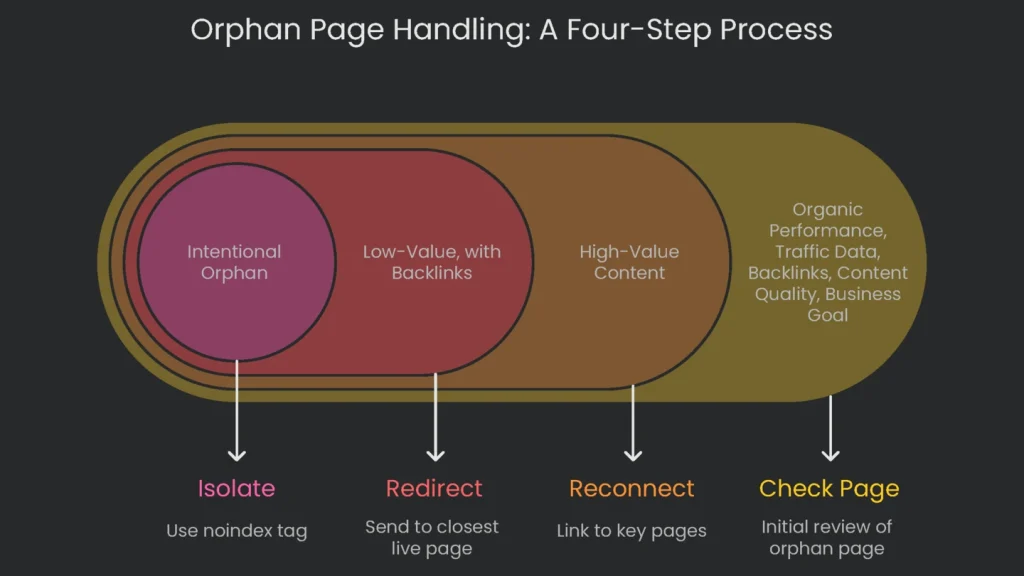
Just finding orphan pages is a start; cleaning them up is the real task. Avoid pouring links into every orphan page. First, examine each one and choose the option that makes the most sense. Therefore, use the short decision tree below to handle any kind of orphan URL efficiently.
First, Check Each Page
What to Review
You can’t rescue any orphan URL until you know if it’s worth the trouble. Ask, “Does this page have a reason to be alive?” Gather three types of data:
- Organic Performance: Log into Google Search Console. If the page still gets impressions or clicks, it deserves a new home.
- Traffic Data: Study Google Analytics. If the URL is receiving traffic, real users are finding it. Therefore, we have to stop sending them to a dead end.
- Backlinks: Use a tool like Ahrefs or Semrush to hunt for backlinks. Pages that other sites still point to have hidden value; these links must not be lost.
- Content Quality: Scan the page itself. Is the content helpful and current, or is it fluff, duplicated, or out-of-date?
- Business Goal: Confirm the page drives value—like capturing leads or delivering must-have facts for your audience. If it helps the business, keep it.
A Four-Step Rescue Plan
After the review, each page will land in one of these four buckets. Use the table that’s coming to figure out the next step for each page you analyze. Consequently, you’ll move faster with fewer mistakes.
| Page Type | Recommended Action |
| High-Value Content: Is this page helpful to visitors and your goals? | Reconnect: Link to it from other key pages across your site to bring visitors back. |
| Low-Value, No Backlinks: Is this page old or thin and has no outside links? | Delete: Tell your server to send a 410 “Gone” status so folks know it’s no longer there. |
| Low-Value, with Backlinks: Is the page on a topic nobody cares about but has solid outside links? | Redirect: Tell the page to send a 301 “Permanent” and send folks to the closest live page instead. |
| Intentional Orphan: Was this page created for a limited goal, like a seasonal ad? | Isolate: Use a noindex tag and keep the page hidden. |
Scenario 1: Keep and Re-Add Pages that still add value.
Use internal links to pull that content back into the site’s flow.
Best Practices for Internal Linking:
Use the context of the topic. For example, a link from a relevant blog post is smarter than one in the universal footer.
- ★ Select Descriptive Anchor Text: When you link to another page, let the anchor text tell the whole story. Skip “click here” and pick a phrase that says exactly what the new page covers. As a result, both users and search engines will thank you.
- ★ Build Links from Strong Pages: Send a link from a page that’s already popular, packed with visitors and links. Consequently, the page you’re connecting to will pick up strength from that referral.
- ★ Place Links Where They Matter: Drop the link right where it makes logical sense. Big pages might belong in the main navigation or in breadcrumb trails—any spot where you’re guiding the user journey.
Scenario 2: Wipe Out Outdated Pages
If a page is old and nobody needs it anymore, it’s time to delete it. The trick is figuring out what to do based on who else is linking to it. Therefore, choose carefully.
- If the page isn’t being talked about: Delete it and use a 410 “Gone” status. That’s a formal heads-up to search engines and people that the page will not come back. Sweeping it out of search results keeps focus on the pages that really matter.
- If the page is getting strong backlinks, don’t just delete it and lose the authority those links bring. Instead, set up a 301 redirect to the closest live page that still makes sense. This way, the juice from the links goes to a page that’s actually useful. Avoid sending it to the homepage or a random page—Google could ignore that. Be clear and direct with the redirect.
Scenario 3: Keep Intentional Orphan Pages Safe.
Some content is designed to live alone and never get found through regular search. These pages usually support a short-term goal, like a marketing push. Common types are landing pages built for pay-per-click ads, special email campaign targets, or the “thank you for signing up” pages that appear after someone fills in a form.
If you want these pages to stay out of search results, drop a <meta name=”robots” content=”noindex”> tag in the page’s HTML head. That tells search engines to skip it without interrupting its job. Consequently, the visibility in your campaigns stays strong and organic search stays hands-off.
Once you’ve cleaned up those orphan pages, the next step is to figure out why they showed up in the first place. Did a site move go sideways? Maybe there isn’t a clear rule for when to delete old articles. By tackling the underlying cause, we can nip future orphan pages in the bud. Finally, document the fix.
Conclusion: Make Audits a Routine
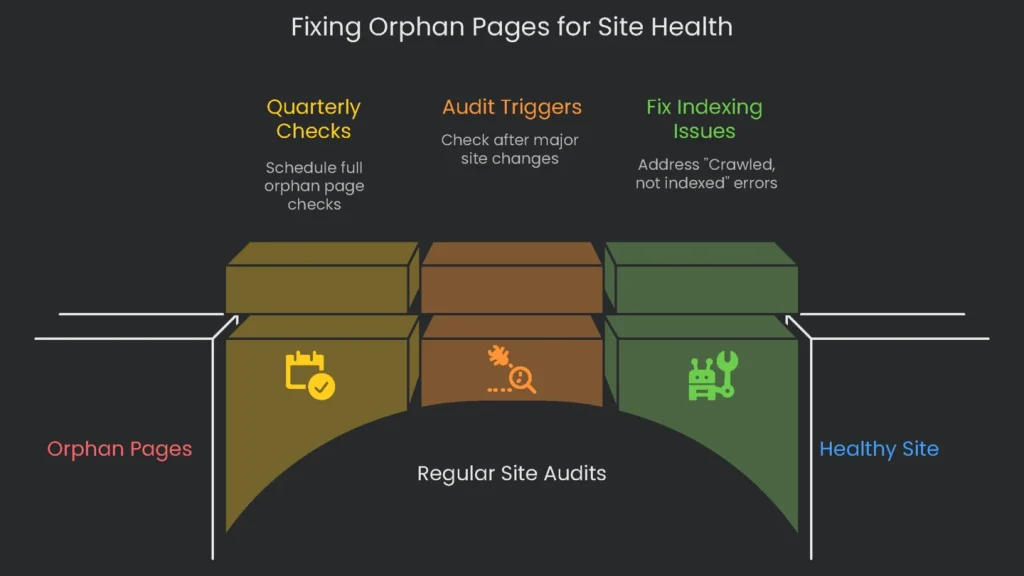
Hunting down and fixing orphan pages is not a one-off chore; it’s a mini health check every site needs. Think of it like cleaning up spills when you see them. Websites are always evolving—new posts, old scores, and changes in layout. Therefore, if you wait too long, dropped pages pile up and slow your site down.
The Perks of a Tidy Map
Why It Matters
A site that’s well organized, with pages linking to one another, lets search engines zoom in, users find what they need, and Google pass authority where it matters most. When you spot and fix orphan pages, you guard this flow. As a result, each nugget of valuable content gets indexed, earns a shot at a high rank, and helps pull in steady traffic.
When to Run a Check
Quarterly Checks
To keep everything in shape, a full orphan page check should go on the schedule. Haul most of the site data and look for orphan pages at least once every three months. Mark the calendar and treat it like a dentist appointment—always show up, every time.
Audit Triggers
When your website goes through big changes, run an audit to catch anything that might’ve slipped through. Here’s when to press the “check it out now” button:
- You just moved your whole site to a new domain and want to keep links safe.
- You’ve rolled out a shiny new design and want to make sure old pages still sit pretty.
- You switched your Content Management System and need to see that every piece still works.
- You cleaned out a mountain of old content, and it’s time to make sure the remaining pages shine.
- The site just got a brand-new section filled with guides, tools, or resources that need healthy links and tags.
Handle it now, and your site will stand tall with a strong and speedy structure, always ready to crush its goals.
Implementation steps
- Pull a complete URL list then check it against crawl data, traffic reports, and logs. Look for URLs that aren’t linked anywhere yet.
- For each orphan link, decide whether to keep it, 301-redirect it, or let it go. Base the call on the page’s value and purpose.
- Place pages that are valuable but orphaned into the right hubs and category pages so people and crawlers see them.
- For pages that are low-value, 301-redirect them to the closest page that makes sense or set them to 410 if you’re entirely removing them.
- Re-crawl the site to check that the pages are discoverable and that traffic comes back to the right URLs
Frequently Asked Questions
What’s an orphan page?
It’s a page that nobody inside your site is linking to.
Why is that a problem?
Search engines might ignore it and visitors can’t reach it easily, so value gets stuck.
How do I track them?
Run a full site scan, then check your Analytics, GSC, and log file data to find URLs nobody touched.
What’s the next step?
Add links to a logical section, do a 301 to something better, or noindex and delete it if it has no value.
Do sitemaps help?
Not really—links inside the site still do the real work of passing value and guiding crawlers.